# Antioch documentation
> Generated from the same canonical MDX pages as the Antioch webapp.
## [/docs/quickstart/welcome-to-antioch](/docs/quickstart/welcome-to-antioch)
[Antioch simulation reel](/docs-media/antioch-simulation-reel.mp4)
Welcome to Antioch, the simulation platform for physical AI. Antioch helps robotics and autonomy teams develop and scale simulation: run local code on cloud GPUs, build with ready-to-use simulation components, save the evidence from repeatable tests, and give coding agents the tools to work as expert simulation engineers.
The platform brings four connected capabilities into your engineering workflow:
- **Cloud Compute.** Run scripts, shells, and notebooks in a cloud session. Keep using your editor without installing a simulator or GPU locally. [How it works](/docs/quickstart/how-antioch-works).
- **Simulation Tools.** Use native [Isaac Sim](/docs/simulation-capabilities/engines/isaac-sim-6-0-1) APIs with ready-made robots and scenes, or load models from your team's [asset catalog](/docs/organization/manage-assets).
- **Scenarios and Results.** Define inputs and checks, run them across different cases, and review the saved results. [Try it in the example](/docs/quickstart/run-your-first-simulation#turn-the-script-into-a-scenario).
- **Agent Tooling.** Give your coding agent simulation documentation and tools to run code and inspect results. [Connect your agent](/docs/quickstart/work-with-agents).
## Start with One Simulation
In this quickstart, we'll load a warehouse and Nova Carter robot in Isaac Sim, then drive the robot to a target position. First, we'll run a single instance of this simulation in the Antioch cloud and watch the stream in the Antioch console. Then, we'll formalize the simulation as an Antioch scenario, add parameters and checks, compare speeds, and run multiple parameterized scenarios as a suite.
You'll need a terminal, a browser, and access to an Antioch organization. Ask your team's admin for an invitation if you don't have access yet.
- [Install and Sign In](/docs/quickstart/install-the-sdk) — Set up your Python project and connect it to your account.
- [How Antioch Works](/docs/quickstart/how-antioch-works) — Understand services, sessions, scenarios, and the session lifecycle.
- [A Simple Example](/docs/quickstart/run-your-first-simulation) — Drive a warehouse robot, check its behavior, and run a suite.
- [Work with Agents](/docs/quickstart/work-with-agents) — Have your coding agent extend the example and review its results.
## [/docs/quickstart/install-the-sdk](/docs/quickstart/install-the-sdk)
Let's set up a local Python project for the warehouse simulation. We'll install Antioch's command-line tool (CLI), which starts sessions and runs code, and its Python SDK, which our scripts and scenarios use. Then we'll sign in so you can use your organization's cloud compute and share results with your team. You don't need Isaac Sim or a GPU on your computer.
## Install uv
We'll use [`uv`](https://docs.astral.sh/uv/) to manage Python and the project's dependencies throughout this guide. If you already use `venv`, `pip`, or Conda, those work too; just use a Python 3.12 environment. If `uv` is already installed, you can skip this step.
**macOS**
```bash
curl -LsSf https://astral.sh/uv/install.sh | sh
```
**Linux**
```bash
curl -LsSf https://astral.sh/uv/install.sh | sh
```
**Windows**
```powershell
powershell -ExecutionPolicy ByPass -c "irm https://astral.sh/uv/install.ps1 | iex"
```
After installing, open a new terminal so it can find the `uv` command.
## Create a Python Project
Let's give the simulation its own directory and Python environment. Create a project called `warehouse-sim` with Python 3.12:
```bash
uv init --bare --python ">=3.12,<3.13" warehouse-sim
uv --directory warehouse-sim python pin 3.12
cd warehouse-sim
```
This creates a `pyproject.toml` for your Python dependencies, and the simulation code and tests will live in this directory too. Later, in [A Simple Example](/docs/quickstart/run-your-first-simulation#initialize-the-antioch-project), `antioch init` adds the `antioch.yaml` file that turns this directory into an Antioch project. [Configure Your Project](/docs/running/understand-antioch-yaml#start-with-one-service) explains its settings when you're ready to change them.
## Install Antioch
The quickstart uses [Isaac Sim 6.0.1](/docs/simulation-capabilities/engines/isaac-sim-6-0-1) as its simulation engine. Install Antioch with its Isaac Sim support:
```bash
uv add --compile-bytecode "antioch-sim[isaac-sim]>=0.5.0"
```
This installs the CLI, the Python SDK, and Isaac Sim type definitions so your editor can check engine code. It doesn't install the simulator itself. `uv` creates the `.venv` environment and records the dependencies in `pyproject.toml` and `uv.lock`.
## Activate the Environment
Let's activate the environment so your terminal uses this project's Antioch installation, then check that the command works:
**macOS**
```bash
source .venv/bin/activate
antioch --version
```
**Linux**
```bash
source .venv/bin/activate
antioch --version
```
**Windows**
```powershell
.venv\Scripts\Activate.ps1
antioch --version
```
You can also run commands without activating the environment: prefix them with `uv run`, as in `uv run antioch --version`. If PowerShell refuses to run `Activate.ps1`, run `Set-ExecutionPolicy -Scope CurrentUser RemoteSigned` once, or keep using `uv run`.
## Sign In to Antioch
From the project directory, run:
```bash
antioch auth login
antioch auth whoami
```
The login command opens your browser and shows a confirmation code. Check the code and approve the request. If the browser does not open, follow the link printed in your terminal. Once you're signed in, `whoami` shows your account and active organization, where you'll share projects and saved runs with your team. If you belong to several organizations, use `antioch auth switch` to choose one. Your login carries across projects on this computer.
You're ready to continue to [How Antioch Works](/docs/quickstart/how-antioch-works), where we'll introduce the projects, services, and sessions used in the example. The upgrade instructions below are for an existing installation; you can skip them if you just installed Antioch.
## Upgrade the SDK
To upgrade an existing project to the latest SDK, run:
```bash
uv add --upgrade-package antioch-sim --compile-bytecode "antioch-sim[isaac-sim]"
antioch --version
```
An untagged `antioch-engine` image follows the new release; if your Dockerfile pins a tag, update it to the same release. Existing sessions keep their original images, so start a new session and release the old one to use the update. Run `antioch setup` again if you've installed the agent plugin. For additional Python dependencies, see [Build a Custom Simulation Image](/docs/running/understand-antioch-yaml#build-a-custom-simulation-image).
## [/docs/quickstart/how-antioch-works](/docs/quickstart/how-antioch-works)
Antioch runs your simulation code on cloud compute while you work in your local editor. Your code, dependencies, and configuration stay in your project and Antioch handles building the environment, allocating the cloud resources, running the simulations, and storing telemetry and outputs for you and your team. Let's walk through the core Antioch principles that enable this.
## Projects, Services, and Sessions
A **project** is a directory that holds your simulation: the simulation code you run, the dependencies it needs, and the tests you want to repeat. An `antioch.yaml` file at its root defines the project's services, tells Antioch where to find scenarios, and groups those scenarios into suites. Because the project is an ordinary directory, you can keep it in Git next to your robot software.
A **service** is a container defined in `antioch.yaml`. It can run the simulator or software that runs alongside it. Our example needs one service, `sim`, whose image includes Isaac Sim and the Python SDK. A larger project might add services for perception or navigation, each with its own image and dependencies; [Configure Your Project](/docs/running/understand-antioch-yaml#add-a-supporting-service) shows how to connect them.
A **session** is one running copy of your project's services on cloud compute. The services start together and can reach one another. Once the session is ready, you can run scripts, open a shell inside a service, or use a notebook, and you can keep reusing it as you develop.
**Local project and session**
The local project contains `pyproject.toml`, `antioch.yaml`, and Python files such as `src/main.py` and `src/scenarios.py`. A session runs the project's services on cloud compute:
- a simulator service for Isaac work, called `sim` in the generated project; and
- optional supporting services, such as a robot `controller`.
Antioch builds service images and syncs the files your `sync` mappings select. Each session runs its own copy of those services.
In the example, [Isaac Sim](/docs/simulation-capabilities/engines/isaac-sim-6-0-1) creates the warehouse, simulates the robot's movement, and renders the scene. Antioch provides the cloud environment and the tools to run that code and watch it from your browser.
## Follow the Session Lifecycle
Antioch builds your service images and starts the services in a session. You can then run and update your code in that session, and release it when you're finished. Let's walk through each stage.
Build or reuse service images → Start services → Run and sync → Release compute. Reuse a session after editing source files. Changes to images, dependencies, or service configuration need a new session.
1. **Build.** Antioch uploads the files needed to build your service images, then builds those images in the cloud. Your team can reuse the images, and Antioch skips the build when nothing has changed.
2. **Start.** Antioch allocates compute and starts the services together. `antioch session new` builds and starts the session environment for you, then prints the session's ID when it's ready.
3. **Run and sync.** Run scripts, shells, notebooks, and scenarios. Interactive commands copy your local edits to the session and keep syncing while attached. Scenarios run a saved copy of the source you submit. Add `--stream` to the command to watch the simulation in [Mission Control](/mission-control).
4. **Release.** When you're finished, `antioch session release` stops the services and frees the compute. Saved scenario results remain available.
By default, Antioch releases a session you started after 15 minutes without active work. You can [set a different idle window](/docs/running/work-interactively#start-a-development-session) when starting it. Running commands, scenario runs, executing notebook cells, and a browser or agent connected to JupyterLab keep the session active. An idle kernel alone does not, and neither does watching a stream or leaving the console open. The [interactive guide](/docs/running/work-interactively#release-the-session) explains how to check what is keeping a session active. Save any files you need from the session before releasing it.
### Reuse a Session or Start Another
When you edit your Python code, keep using the same session and rerun your script. If you have one running session that you started in the current project, commands use it automatically. If you've started several, choose one with `--session SESSION_ID`; `antioch session list` shows their IDs.
`session new` always adds a session; it never replaces one. After changing the Dockerfile, dependencies, or services, start a new session and release the old one when you're done with it. The [interactive guide](/docs/running/work-interactively#edit-and-run-again) covers sync, notebooks, and saving files before release.
## From a Script to Repeatable Scenarios
While developing, you might run a script and watch the robot move. Once the behavior looks right, you can turn it into a **scenario**: a parameterized 3D integration test. Your code sets up the environment, loads the robot and its software, steps the simulation, and checks what happened.
In Python, a scenario is a function decorated with `@antioch.scenario`. Its parameters let you vary the test without rewriting it, and its checks decide whether each run passes. In our warehouse example, we'll drive a robot toward a target position. The scenario will let us try different speeds and check that the robot stops near that position and on the straight path.
Each time you execute a scenario, Antioch saves a **run** with its inputs, outcome, checks, and any data your code records. You can review the run after its session is released. A **case** is a named set of inputs, such as a slow speed or a faster one. A **suite** groups scenarios and cases so you can run them together.
**Develop interactively**
- **Python script — `antioch service exec -- python src/main.py`.** Run a project Python file.
- **Jupyter — `antioch jupyter lab`.** Keep a live kernel.
**Test your simulation**
- **Scenario — `antioch scenario run warehouse_delivery`.** Run a scenario with inputs and checks.
- **Suite — `antioch suite run warehouse`.** Run a group of scenarios.
All four run on the project's sessions. Start a session before running scripts or Jupyter. Commands use the session you name, or the only running session you started in this project. Scenarios and suites can use it with `--session`, or run on sessions Antioch starts for them.
You can run a scenario in two places:
- **On your session:** pass `--session SESSION_ID` while you're developing. Antioch saves your source and runs scenarios there one at a time. Your session stays available afterwards.
- **On sessions Antioch starts:** leave out `--session`. Antioch saves a copy of your source, builds the environment if needed, and runs up to two scenarios at once by default. It reuses these sessions for more runs and releases them after five idle minutes. Your own sessions are left alone.
Scenario and suite commands wait for results by default. Add `--detach` to get your terminal back once the runs are submitted; they keep running, and you can follow them in the console. [Scenarios and Suites](/docs/scenarios/run-scenarios-and-suites) covers writing checks, selecting cases, running in parallel, and repeating saved runs.
## Watch Runs and Review Results
When a simulation is streaming, [Mission Control](/mission-control) shows it live. Add `--stream` when running a script, scenario, or suite to watch it there. Without the flag, the simulation runs without a livestream. A ready session alone doesn't produce a picture: your code must be running and rendering the scene. [Watching Simulation Streams](/docs/running/use-mission-control) shows how to select a session and use the viewer.
After a scenario finishes, [Scenarios](/scenarios) keeps its inputs, checks, and any results or files your code saved. [Suites](/suites) brings related runs together so you can compare cases and spot failures. The [console guide](/docs/scenarios/review-results) explains those views, and you can also [track session usage](/docs/organization/track-compute-usage) across your team's projects.
## Put It into Practice
[A Simple Example](/docs/quickstart/run-your-first-simulation) puts these pieces together: start a session, drive the warehouse robot, turn that script into a scenario, and compare two speeds in a suite. From there, you can bring in [your own assets](/docs/organization/manage-assets) or [ask a coding agent to extend the example](/docs/quickstart/work-with-agents).
## [/docs/quickstart/run-your-first-simulation](/docs/quickstart/run-your-first-simulation)
Let's load NVIDIA's Small Warehouse scene and Nova Carter robot in Isaac Sim, then have the robot drive two meters forward and stop near a target position. First, we'll run the simulation as a Python script on an Antioch session and watch it in the console. Then, we'll reuse the same code in a scenario that checks whether the robot is able to reach the same target position at different speeds, and run those tests together as a suite.
Use the `warehouse-sim` project from [Install and Sign In](/docs/quickstart/install-the-sdk), with its Python environment active.
## Initialize the Antioch Project
From the project directory, run:
```bash
antioch init
```
This creates `antioch.yaml`, a Dockerfile, and starter Python files for Isaac Sim. We'll replace the starter simulation with our warehouse code below. The Dockerfile defines the service image, which includes Isaac Sim and its dependencies. Antioch uses the `sync` mapping in `antioch.yaml` to copy our source files into the `sim` service at `/workspace/project`. Because the source files are copied separately, we can edit Python locally and run it again without rebuilding the image. The [project guide](/docs/running/understand-antioch-yaml#keep-an-interactive-session-current) explains how to choose which files sync.
## Build the Warehouse Simulation
Create `src/warehouse.py`. We'll load the scene and robot from Isaac Sim's asset library and place the robot at `x = -3 m`. The `drive_to_target` function drives it toward `x = -1 m`, slows it down, and stops it. The function returns the robot's final position so our script can print it and our scenario can check it.
```python
import antioch
def drive_to_target(speed_mps: float = 0.4) -> tuple[float, float]:
"""Drive a Nova Carter from x=-3 m to a target position at x=-1 m."""
import numpy as np
from isaacsim.core.experimental.utils.stage import add_reference_to_stage
from isaacsim.core.utils.viewports import set_camera_view
from isaacsim.robot.wheeled_robots.controllers.differential_controller import DifferentialController
from isaacsim.robot.wheeled_robots.robots.wheeled_robot import WheeledRobot
from isaacsim.storage.native import get_assets_root_path
root = get_assets_root_path()
add_reference_to_stage(usd_path=root + "/Isaac/Environments/Simple_Warehouse/warehouse.usd", path="/World/Warehouse")
set_camera_view(eye=[-6.0, -5.0, 4.0], target=[-1.5, 0.0, 0.5])
world = antioch.world()
robot = world.scene.add(WheeledRobot(
prim_path="/World/Carter",
name="carter",
wheel_dof_names=["joint_wheel_left", "joint_wheel_right"], # pyright: ignore[reportArgumentType]
create_robot=True,
usd_path=root + "/Isaac/Robots/NVIDIA/NovaCarter/nova_carter.usd",
position=np.array([-3.0, 0.0, 0.0]),
))
controller = DifferentialController(
name="drive", wheel_radius=0.14, wheel_base=0.413,
)
world.reset()
# Slow down as we approach the target position, then command a stop.
for step in range(1200):
x = float(robot.get_world_pose()[0][0])
remaining = -1.0 - x
speed = min(speed_mps, remaining) if remaining > 0.05 else 0.0
robot.apply_wheel_actions(controller.forward(np.array([speed, 0.0])))
world.step(render=step % 3 == 0)
robot.apply_wheel_actions(controller.forward(np.array([0.0, 0.0])))
for _ in range(60):
world.step(render=True)
position = robot.get_world_pose()[0]
return float(position[0]), float(position[1])
```
The wheel names, radius, and spacing match the Nova Carter model. The controller converts the requested forward speed into commands for the two wheels. On each step, our code reads the robot's position, reduces its speed as it approaches the target, and advances the physics simulation. At 60 physics steps per simulated second, the driving loop covers 20 seconds.
`antioch.world()` returns Isaac Sim's own `World` object. We keep Isaac imports inside the function so they run after the simulator starts. This also lets Antioch import the file on your computer without Isaac installed. [Working Interactively](/docs/running/work-interactively#start-and-configure-isaac) covers startup, timing, and Isaac's native objects in more depth.
Both assets come from NVIDIA's library. To explore other scenes, see [Isaac Sim environments](https://docs.isaacsim.omniverse.nvidia.com/6.0.1/assets/usd_assets_environments.html). You can also [load your team's models](/docs/organization/manage-assets#load-a-published-usd-asset-into-isaac).
## Run the Simulation
Replace `src/main.py` with this script:
```python
import antioch
from warehouse import drive_to_target
def main() -> None:
"""Start Isaac Sim and drive to the target position."""
antioch.start_simulation(antioch.SimulationConfig(physics_dt=1 / 60))
final_x, final_y = drive_to_target(speed_mps=0.4)
print(f"Robot stopped at ({final_x:.2f}, {final_y:.2f}) m")
# Keep the final pose visible for ten seconds before the script exits.
from time import monotonic
until = monotonic() + 10
while monotonic() < until:
antioch.world().step(render=True)
if __name__ == "__main__":
main()
```
`start_simulation` starts Isaac Sim inside the service. `SimulationConfig` sets its physics timing and can also enable extensions or pass native Isaac flags. See [Configure the Engine](/docs/simulation-capabilities/engines/isaac-sim-6-0-1#configure-the-engine) when you need those options.
Start a session:
```bash
antioch session new
```
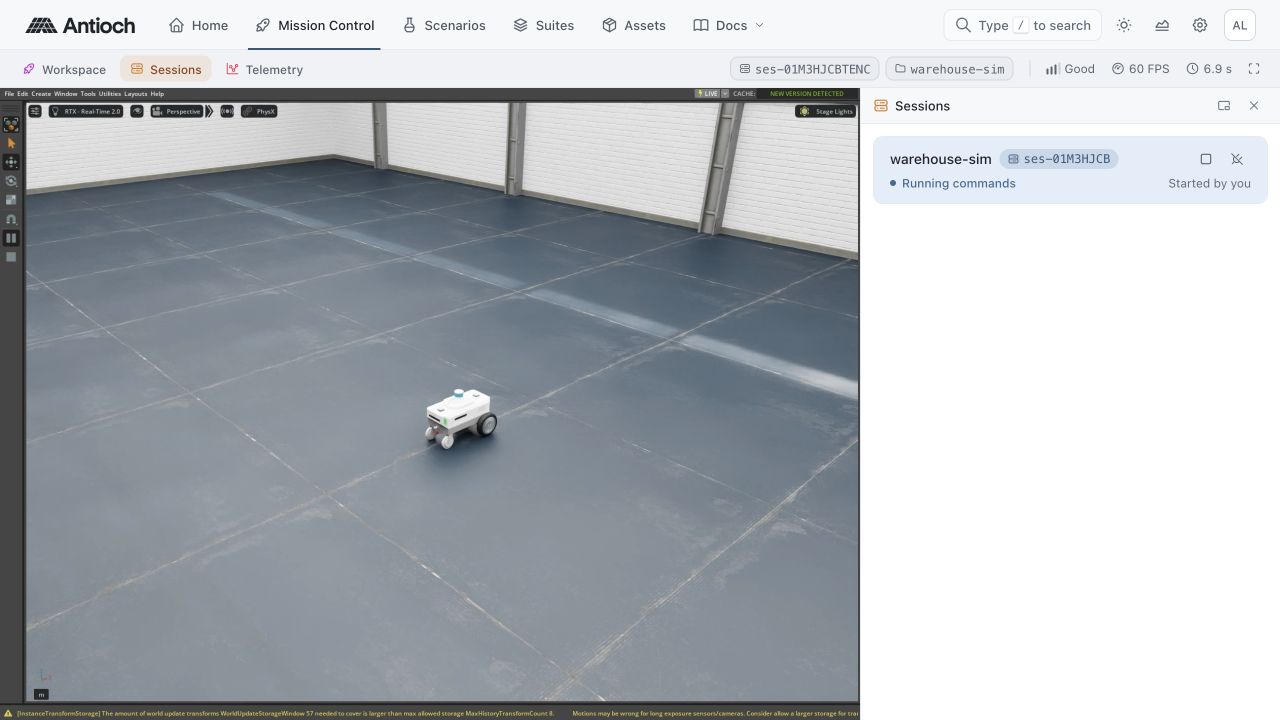
Note the session ID it prints. [Open the Antioch console](/) and go to **Mission Control** so you're ready to select the stream. Then run:
```bash
antioch service exec --stream -- python src/main.py
```
`session new` builds or reuses the service image and starts the containers. `service exec` then syncs your files and runs the script in the session. The `--stream` flag enables the livestream in Mission Control. Leave it out when you only need terminal output or saved results.
Select the session's stream in Mission Control to watch the robot. Loading Isaac and the robot may take a little while on the first run. After driving, the script prints the final position and keeps the scene visible for ten seconds. The session stays ready for another command after the script exits.
Local project (`pyproject.toml`, `antioch.yaml`, Dockerfile, Python files) → build and start → session containing the `sim` service on cloud compute. Edit locally → sync files → run again in the same session. When the script exits, the session stays ready for another command. Releasing the session frees the compute.
### Try a Change
Change `speed_mps=0.4` in `src/main.py` to `speed_mps=0.6`, then rerun the same `service exec` command. Antioch syncs the edit to the existing session, so this source change needs no new build. To inspect and change objects between steps, you can also [work through the scene in Jupyter](/docs/running/work-interactively#work-in-jupyter).
The robot should approach faster while still stopping near the same target position. Watching the stream helps you spot the difference; a scenario lets you check the final position each time you change the code.
## Turn the Script into a Scenario
Now that we've tried the simulation interactively, let's give it inputs and checks we can repeat. Replace `src/scenarios.py` with the following. It calls the same driving function, adds a speed parameter, and checks where the robot stopped:
```python
import antioch
from warehouse import drive_to_target
@antioch.scenario(
tags=["warehouse"],
config=antioch.SimulationConfig(physics_dt=1 / 60),
cases=[
antioch.case({"speed_mps": 0.25}, id="slow"),
antioch.case({"speed_mps": 0.6}, id="fast"),
],
)
def warehouse_delivery(
run: antioch.ScenarioRun,
speed_mps: float = antioch.param(0.4, ge=0.1, le=0.8, description="Maximum forward speed in meters per second"),
) -> None:
"""Check that the robot stops near its target position."""
final_x, final_y = drive_to_target(speed_mps)
run.add_result("final_x_m", final_x)
run.add_result("final_y_m", final_y)
run.check("reached the target position", abs(final_x + 1.0) < 0.15, detail=f"Final x: {final_x:.3f} m; target: -1.000 m")
run.check("finished on the straight path", abs(final_y) < 0.2, detail=f"Final y: {final_y:.3f} m")
```
Antioch starts Isaac before calling a scenario, so this function doesn't call `start_simulation`; the decorator supplies the same simulation settings and declares two named cases. `run.add_result` saves a measurement, and `run.check` records whether a condition passed. [Scenarios and Suites](/docs/scenarios/run-scenarios-and-suites#define-a-scenario) covers parameters, checks, and recording more evidence as your tests grow.
First, check that the CLI can discover the definition:
```bash
antioch scenario collect
```
The command imports and validates the scenario on your computer, then shows its name and default parameters. It doesn't start a cloud session.
### Check It on Your Session
After the script has finished, run the scenario on the session we already started. Replace `SESSION_ID` with the ID from `session new` or `session list`:
```bash
antioch scenario run warehouse_delivery --session SESSION_ID
```
This saves your source and runs the scenario with its default speed of 0.4 m/s. The command waits for the checks and reports the outcome. If it fails, inspect the recorded position and the failed check before changing the controller or its tolerance.
## Run Cases on Antioch's Sessions
We've tried the behavior on our development session. Release it now that the command has finished:
```bash
antioch session release
```
Then run both named cases without choosing a session:
```bash
antioch scenario run warehouse_delivery --all-cases
```
Antioch saves a copy of your source and runs each case on sessions it starts for this work, up to two at a time by default; anything else waits its turn. Each run uses the files you submitted, so later local edits don't change it. These sessions release after five idle minutes.
Two cases, `slow` (`speed_mps=0.25`) and `fast` (`speed_mps=0.6`) → the same `warehouse_delivery` scenario → two saved runs. Each keeps its inputs, checks, `final_x_m`, and outcome after the session is released.
A scenario runs with its defaults unless you request cases. You can also try a value without editing the file:
```bash
antioch scenario run warehouse_delivery --set speed_mps=0.5
```
## Keep the Cases Together in a Suite
A suite groups scenarios and cases so you can run them together with one command. We'll create a suite that runs our warehouse scenario with both the `slow` and `fast` cases. In `antioch.yaml`, replace the generated `suites` section with this one, keeping the other project settings:
```yaml
suites:
warehouse:
description: Check stopping position at different speeds
select:
- scenarios: [warehouse_delivery]
all_cases: true
```
Run it with:
```bash
antioch suite run warehouse
```
The suite groups both cases and their results. As you write more scenarios, add them to the selection so one command checks every behavior you care about. For a longer suite, `antioch suite run warehouse --detach` returns to your terminal after submission while the runs continue. [Scenarios and Suites](/docs/scenarios/run-scenarios-and-suites#define-a-suite) covers larger selections, parallel runs, and reruns.
## Review and Share the Results
Open [Scenarios](/scenarios) and select a `warehouse_delivery` run. Under **Details**, compare `speed_mps`, the two checks, and the saved `final_x_m` and `final_y_m` measurements.
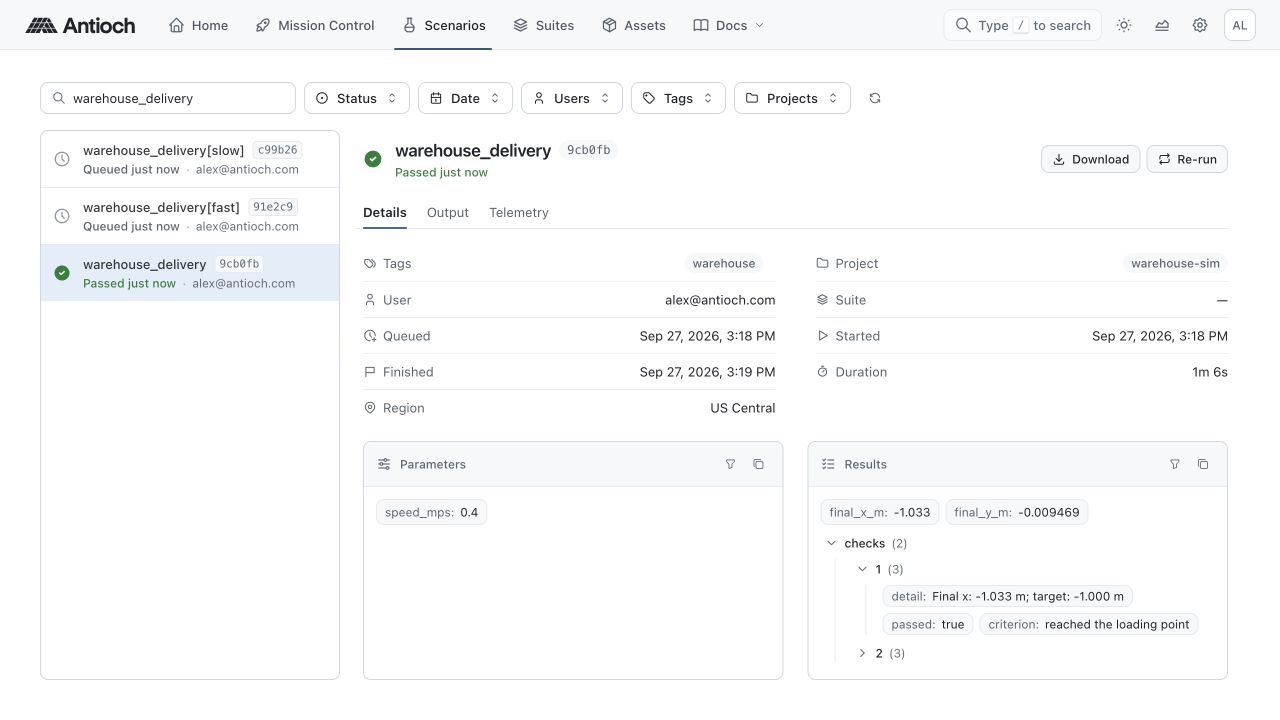
Open [Suites](/suites) to see the two cases together and their pass rate. The [console results guide](/docs/scenarios/review-results) explains how to inspect saved telemetry, output, and files alongside the checks.
The final-position check tells us where the robot ended; it doesn't prove that it avoided every obstacle along the way. You can extend the scenario with trajectory measurements or contact sensors as your requirements grow.
Share a run's page with a teammate to review the same inputs, checks, and measurements. The results stay available after the session is released, so you can come back to them without starting the simulation again.
We've used one simulation as a script, a scenario, and a suite. Next, [connect your coding agent](/docs/quickstart/work-with-agents) and ask it to add a measurement or another case. When you're ready to build out the scene, [Manage Assets](/docs/organization/manage-assets) covers finding, publishing, and loading models your team can reuse.
## [/docs/quickstart/work-with-agents](/docs/quickstart/work-with-agents)
In the previous section, we built a warehouse simulation and a suite that checks the robot at two speeds. Let's give your coding agent the tools to extend the example and review the results with you. Antioch's plugin for Claude Code and Codex gives the agent simulation documentation, guidance for the CLI and SDK, and access to Python notebooks running in your sessions. The agent can edit your local project, run the simulation, and inspect the saved results.
## Install the Plugin
Make sure Claude Code or Codex is available from your terminal. From the `warehouse-sim` project, with its [Python environment active](/docs/quickstart/install-the-sdk#activate-the-environment), run:
```bash
antioch setup
```
Setup installs the plugin for each supported agent it finds and checks your sign-in and documentation search connection. Follow any next steps it prints, or add `--dry-run` to preview the changes. Run setup again after an [SDK upgrade](/docs/quickstart/install-the-sdk#upgrade-the-sdk) to keep the plugin up to date.
## Start from Your Project
Launch your agent from the same terminal so it can find the project's Antioch environment. For Claude Code:
```bash
claude
```
Use `codex` instead if that's your preferred agent. If it was already open during setup, restart it to load the plugin.
The plugin includes **Antioch Research**, which lets the agent search simulation documentation and source code. To check that it can find the engine version used in this project, ask:
> Use Antioch Research to call `research_versions` and confirm that Isaac Sim 6.0.1 documentation is available. Use that version for this project.
The [plugin repository](https://github.com/antioch-robotics/antioch-agent-plugin) has troubleshooting and removal instructions.
## Research the Simulation Stack
Give the agent a concrete question about the version you're using. For example, our current scenario only checks the robot's final position. We could add a camera to record what the robot sees as it moves:
> Look up the Isaac Sim 6.0.1 API for adding a camera to our Nova Carter and reading RGB images. Check the required imports and extensions before proposing a change to `src/warehouse.py`.
Give the agent the engine version and the file you're working on, so it can find the right API and propose a change you can review. Here, we'd check where the camera sits and what it captures before adding it to the scenario. The [Antioch Research guide](/docs/agents/antioch-research) lists every library and version the agent can search and shows how to check that your agent is connected.
## Extend the Example
Start with a small change whose result you can inspect:
> Add a `medium` case to `warehouse_delivery` with `speed_mps=0.4`. Keep the existing cases and checks. Collect the warehouse suite to verify its selection, then run it once on sessions Antioch starts. Show me the code changes, each case's final position, and links to the saved runs.
The agent should follow the same progression you did: edit, collect, run, and review. Scenario runs use a saved copy of your source, and interactive commands sync the files automatically, so neither needs a separate sync step. The scenario guide shows how to [define cases](/docs/scenarios/run-scenarios-and-suites#define-parameters-and-cases) and [record measurements](/docs/scenarios/run-scenarios-and-suites#record-measurements-over-time) as you extend your tests.
## Review the Work
Review the code changes, then open the saved runs to check the measurements and whether each case passed. If a check fails, have the agent inspect that run before changing the simulation. Keep the goal and the number of runs bounded, especially when exploring sensors or larger scenes.
If you started a session for interactive work, stop its commands and release it when you're done. Sessions Antioch starts for scenarios release automatically. Your saved results remain available to you, your teammates, and your agent.
## [/docs/running/understand-antioch-yaml](/docs/running/understand-antioch-yaml)
Every Antioch project has an `antioch.yaml` file at its root. It names the project, defines the services to start in a session, and tells Antioch where to find scenarios and how to group them into suites. The file generated in the quickstart already runs the warehouse example. Here, we'll look at how to add dependencies, connect another service, and choose compute resources as your simulation grows.
Your Python files define the simulation behavior. The Dockerfile defines the software installed in a service image, and `antioch.yaml` defines how to build that image and run the service. Antioch copies your Python files into the running session separately, so changing simulation code doesn't require rebuilding the image.
## Start with One Service
Open the `antioch.yaml` created by `antioch init`. Its `sim` service runs Isaac Sim 6.0.1 from the generated Dockerfile. Keep the project ID that `init` gave you; the one below is only an example.
```yaml
schema_version: 6
id: warehouse-sim-0123456789abcdef
name: warehouse-sim
scenario_paths: ["src/scenarios.py"]
services:
sim:
build:
context: .
dockerfile: Dockerfile
resources:
gpu: rtx-pro-6000
sync:
- source: .
target: /workspace/project
```
`build` tells Antioch which Dockerfile and build directory to use. `sync` tells it which local files to copy into the service; here, the whole project goes to `/workspace/project`, where commands run. `scenario_paths` lists the Python files or directories Antioch searches for scenario definitions.
**Local project and session**
The local project contains `pyproject.toml`, `antioch.yaml`, and Python files such as `src/main.py` and `src/scenarios.py`. A session runs the project's services on cloud compute:
- a simulator service for Isaac work, called `sim` in the generated project; and
- optional supporting services, such as a robot `controller`.
Antioch builds service images and syncs the files your `sync` mappings select. Each session runs its own copy of those services.
The generated project calls its simulator service `sim`; you can choose another name. When a project has one engine service, Antioch uses it automatically. With several, pick one with `--service NAME` for scripts and notebooks, or `service="NAME"` on a scenario's decorator.
The format is inspired by Compose but isn't a Compose file. Antioch validates it when you use the project and rejects fields it doesn't support.
## Build a Custom Simulation Image
Suppose the robot's controller needs another Python library. Add it to your project's dependencies, then install those dependencies in the service image. Keep the generated, versioned `FROM` line so the engine matches your SDK installation.
For a project using `uv.lock`, add these lines to the generated Dockerfile:
```dockerfile
COPY pyproject.toml uv.lock ./
RUN uv export --frozen --no-dev --no-emit-project --output-file /tmp/requirements.txt \
&& uv pip install --system --no-cache --requirements /tmp/requirements.txt
```
The generated `.dockerignore` keeps every file out of the build unless you include it explicitly. Add the files the Dockerfile copies:
```text
*
!pyproject.toml
!uv.lock
```
Your source files can stay out of the image because `sync` delivers them to the session. After changing a dependency or the Dockerfile, run `antioch session new` to build and start a fresh environment. Existing sessions keep their original images, so release the old one when you're done with it. An untagged engine image follows your SDK, so [upgrading the SDK](/docs/quickstart/install-the-sdk#upgrade-the-sdk) updates it in your next session.
Build uploads are limited to 512 MiB and 20,000 entries. `.dockerignore` filters this upload; `.venv`, `.git`, and Python caches are excluded automatically. `.gitignore` alone doesn't exclude files from a build upload.
## Use a Published Simulation Image
If the engine image already has everything you need, replace `build` with `image`:
```yaml
services:
sim:
image: antioch-engine/isaac-sim-6.0.1
sync:
- source: .
target: /workspace/project
```
A service has either `image` or `build`, never both. An untagged Antioch engine image uses the release that matches your SDK. Keep the `sync` mapping, since the engine image doesn't contain your warehouse code; a service without one uses only the files in its image.
## Keep an Interactive Session Current
A sync mapping copies a `source`, resolved relative to your project, to a `target` at or below `/workspace/project`. The source can also be outside the project, such as `../robot_src`. The quickstart copies the whole project. To copy only your source directory and leave out its fixtures, use:
```yaml
sync:
- source: src
target: /workspace/project/src
exclude: ["fixtures/**"]
```
`service exec`, `service shell`, and `jupyter lab` copy your changes before they start and keep syncing while they're attached. Files ignored by `.gitignore`, the mapping's `exclude` patterns, and Antioch's built-in exclusions (virtual environments, caches, and `outputs/`) stay local. `.dockerignore` affects image builds, not sync.
Your local files overwrite their copies in the session. Files created only in the session are left alone. Copying a file does not reload an imported Python module or rebuild an image, so rerun a script after changing it.
For services with a configured startup command, `antioch service restart` syncs your edits and restarts those commands. It restarts every active service unless you choose one with `--service`. Only services with a `sync` mapping receive your edits. Changes to an image or service configuration still need a new session.
## Add a Supporting Service
Our warehouse robot's controller currently runs inside the simulator process. If you move navigation into its own container, add a service beside `sim`. This example assumes your controller image starts an HTTP server on port 8080, has a `/health` endpoint, and includes `curl`:
```yaml
services:
sim:
build:
context: .
dockerfile: Dockerfile
sync:
- source: .
target: /workspace/project
depends_on:
controller:
condition: service_healthy
controller:
image: registry.example.com/robot/controller:release
environment:
LOG_LEVEL: info
healthcheck:
test: ["CMD", "curl", "--fail", "http://localhost:8080/health"]
interval: 10s
timeout: 3s
start_period: 30s
retries: 3
ports:
- name: control
port: 8080
direction: client-to-service
```
Replace `registry.example.com/robot/controller:release` with your controller image. `depends_on` tells Antioch to wait for the controller's health check to pass before starting `sim`. Use `service_started` when no health check is needed, or `service_completed_successfully` for a setup task that must finish first. Dependencies can't form a cycle and must be present in the session.
The simulator reaches the controller at `controller:8080`. To reach its named `control` port from a tool on your computer, run:
```bash
antioch service ports --bind controller.control=127.0.0.1:8080 --serve
```
Keep that command running while you use the local port. For an image in a private registry, sign in with `antioch auth registry login HOST` before starting the session.
Environment values are saved with shared run history. Keep credentials out of YAML, source, and images. Antioch removes values with credential-like names before upload and warns you; those values won't reach the service.
## Set Resources and Optional Services
The services in a session share its compute. An engine service requests its recommended GPU class by default; the first example states the RTX PRO 6000 explicitly. Declare `gpu` on the service that needs it. All GPU requests in one session must use the same class.
For a CPU-only controller, you can add CPU and memory limits under that service:
```yaml
resources:
cpu: 2
memory: 4Gi
```
These values both reserve and cap the service's resources; leave them unset when you don't need a limit.
Optional services can declare `profiles`, such as `profiles: [tools]`, and start only when you include that profile with `antioch session new --profile tools`. Services without profiles always start. A required dependency must be active too, so don't put the controller above behind an optional profile while `sim` always depends on it.
## Define Suites
A suite groups scenarios you want to run together. Suites are defined under `suites` in `antioch.yaml`, alongside `services`. The quickstart added this `warehouse` suite to run every named case of `warehouse_delivery`:
```yaml
suites:
warehouse:
select:
- scenarios: [warehouse_delivery]
all_cases: true
```
Run it with `antioch suite run warehouse`. [Scenarios and Suites](/docs/scenarios/run-scenarios-and-suites) explains how to write the scenario and define its cases.
With the project configured, [Working Interactively](/docs/running/work-interactively) walks through the everyday loop on a session: run, watch, edit, and run again.
## [/docs/running/work-interactively](/docs/running/work-interactively)
Interactive development keeps your editor on your computer while scripts, shells, and notebooks run in a cloud session. You can watch the simulation, change the code, and run it again without rebuilding anything for each edit.
We'll use the [warehouse project](/docs/quickstart/run-your-first-simulation) from the quickstart. Run the commands from its root, where `antioch.yaml` lives, with its Python environment active.
## Start a Development Session
Check whether you already have a session to reuse:
```bash
antioch session list
```
If you don't, start one:
```bash
antioch session new
```
This builds or reuses the service images and starts the containers. Once the session is ready, you can run as many commands in it as you like. Each `session new` adds another session rather than replacing one. Sessions release after 15 idle minutes by default. Use `antioch session new --idle-timeout 2h` for a longer window, or `--idle-timeout never` to keep the session until you release it.
If you've reached your session limit, release a session before starting another. Sessions Antioch starts for your scenario runs count toward that limit too, and they release after five idle minutes. Starting a session never stops your existing work to make room.
Build or reuse service images → Start services → Run and sync → Release compute. Reuse a session after editing source files. Changes to images, dependencies, or service configuration need a new session.
If you have one running session that you started in the current project, commands use it automatically. If you have several, choose one explicitly. You can select any of your sessions with `--session SESSION_ID`, including one Antioch started for a scenario.
## Run the Script
The quickstart's `src/main.py` starts Isaac and calls `drive_to_target` to drive the robot. Run it on your session:
```bash
antioch service exec --stream -- python src/main.py
```
Antioch syncs your files to the `sim` service, then starts Python there. Output appears in your terminal. Open [Mission Control](/mission-control) and select the session to watch the robot; loading Isaac and its assets can take a little while on the first run. [Watching Simulation Streams](/docs/running/use-mission-control) explains the viewer controls.
`--stream` streams this command to Mission Control. Without the flag, your code decides: `SimulationConfig(stream=True)` streams, and leaving it out or setting `stream=False` keeps the script headless. That makes `stream=True` the way to stream from a notebook in JupyterLab. A flag always wins over the code, so `--stream` streams a script that sets `stream=False`, and `--no-stream` keeps a script that sets `stream=True` headless. Streaming and sensor rendering are separate: a script that uses cameras still needs to render its sensor images.
## Edit and Run Again
`service exec`, `service shell`, and `jupyter lab` copy your local files to the session before starting, then keep syncing edits while the command stays attached. When you disconnect, syncing stops; the next command copies your latest files again. There's no separate watch command.
Your [sync mappings](/docs/running/understand-antioch-yaml#keep-an-interactive-session-current) choose the local directories and their destinations. Files ignored by `.gitignore`, a mapping's `exclude` patterns, and built-in exclusions such as `.venv` and `outputs/` stay local. Sync sends changes from your computer to the session, not back to your computer. It overwrites matching remote files but keeps files created only in the session.
A running Python process keeps the code it has already imported, so stop and rerun the script after editing it. In a notebook, reload the module or restart the kernel. Sync updates files; it does not restart your program or rebuild its image.
A session keeps the images and service configuration it started with. After changing the Dockerfile, dependencies, or services, start a new session and release the old one. While both are running, choose one explicitly:
```bash
antioch service exec --session SESSION_ID -- python src/main.py
```
A script runs until it exits unless you set a command timeout. Put `--timeout` before `--`, as in `antioch service exec --timeout 1h -- python src/main.py`. Scenario runs have their own execution time limit.
## Start and Configure Isaac
Keep scene setup and robot behavior in reusable functions, as `src/warehouse.py` does. The script that calls them starts Isaac first with `antioch.start_simulation()`. Pass a `SimulationConfig` to choose its startup settings. To try lighter rendering, replace the startup call inside `main()` in `src/main.py` with:
```python
config = antioch.SimulationConfig(
physics_dt=1 / 60,
render_dt=1 / 60,
renderer_quality="performance",
)
antioch.start_simulation(config)
```
Keep the rest of `main()`, including the ten-second pause that lets you view the final scene, then rerun the script. The Isaac imports in `drive_to_target` stay inside the function, so they run after startup. That also lets Antioch discover your scenarios on a computer with no simulator installed.
`physics_dt` sets how much simulated time passes in each physics step. `render_dt` sets the interval between rendered frames and must be a whole multiple of `physics_dt`. Here, both run at 60 Hz. `renderer_quality` changes rendering settings and the maximum livestream resolution; it does not resize sensor cameras.
If your code needs the viewport to keep rendering without a stream, such as a Replicator orchestrator, set `viewport_updates=True`.
Use `extensions` to enable additional Isaac Kit extensions and `extra_args` for native startup flags; the [Isaac Sim guide](/docs/simulation-capabilities/engines/isaac-sim-6-0-1#configure-the-engine) explains both. The engine itself comes from your service's image, which you choose in [project configuration](/docs/running/understand-antioch-yaml).
### Work with the Native World and Stage
After startup, `antioch.world()` returns Isaac Sim's `World` object, which owns the scene and physics loop in the warehouse example. `antioch.stage()` returns the current USD stage, which holds the scene's objects and their properties. USD calls each object a **prim**. You can inspect and change these prims with the native USD API. For example, add this after the driving call in `main()` to check the robot's prim:
```python
stage = antioch.stage()
carter_prim = stage.GetPrimAtPath("/World/Carter")
print(f"Robot prim exists: {carter_prim.IsValid()}")
```
When you build a scene, add its objects before calling `world.reset()` to initialize physics. Then `world.step(render=True)` advances physics and renders a frame. When a step needs neither a picture nor rendered sensor data, `render=False` skips the rendering work. A live viewer only has something to show while your code keeps rendering; a ready session alone doesn't produce a stream.
Your controller, sensors, and scene setup keep using native Isaac APIs; the SDK doesn't wrap them. For models your team reuses, see [Manage Assets](/docs/organization/manage-assets) and [load a published USD asset](/docs/organization/manage-assets#load-a-published-usd-asset-into-isaac).
## Work in Jupyter
A notebook lets you inspect the scene and change Python objects between steps. Once the script has finished, open JupyterLab on the session:
```bash
antioch jupyter lab
```
Keep the command running while you work so local edits keep syncing. Create a notebook with the Antioch kernel. To watch the notebook's simulation in Mission Control, start Isaac in that kernel from another terminal:
```bash
antioch jupyter cell --stream 'import antioch; antioch.start_simulation(antioch.SimulationConfig(physics_dt=1 / 60))'
```
If you don't need a livestream, start Isaac in the notebook's first cell instead:
```python
import antioch
antioch.start_simulation(antioch.SimulationConfig(physics_dt=1 / 60))
```
The kernel starts in your project directory with both the project root and `src` importable, so you can call the quickstart's helper directly:
```python
from warehouse import drive_to_target
world = antioch.world()
world.stop()
world.clear()
final_x, final_y = drive_to_target(speed_mps=0.4)
print(final_x, final_y)
```
Before each repeat, stop and clear the world to remove the previous scene and robot. Isaac itself stays running. To change Isaac's startup settings, extensions, or stream mode, restart the kernel. After editing an imported module locally, reload it or restart the kernel; syncing the file doesn't reload Python's cached copy.
You or your agent can also run cells from a terminal:
```bash
antioch jupyter cell '1 + 1'
```
The command uses the running kernel, or starts one if there isn't one. With several kernels, pass `--kernel KERNEL_ID`.
Pressing **Ctrl-C** disconnects the local JupyterLab command without stopping the server or its kernels. They keep their state until you stop them or the session ends. An idle kernel alone does not keep the session active. To stop JupyterLab and its kernels when you're done:
```bash
antioch jupyter stop
```
## Interact with a Service
A shell is handy for inspecting files or trying a command in the same environment as the simulator:
```bash
antioch service shell --service sim
```
Exit the shell when you're finished. For a single command, use `service exec` directly:
```bash
antioch service exec --service sim -- nvidia-smi
```
`antioch session status` shows whether the session is ready, and `antioch service logs --service sim` shows the service's startup logs. Those logs come from the service's configured command; a script you launch prints to the terminal that launched it.
Sync overwrites the session's copies of your local files, but files created only in the session stay there until it's released. To keep one, copy it back while the session is running:
```bash
antioch service cp sim:/workspace/project/outputs/report.json ./report.json
```
This assumes your code wrote `outputs/report.json`; remote paths must be inside `/workspace/project`. For output from a scenario, [attach it to the run](/docs/scenarios/run-scenarios-and-suites#save-output-files) so it's saved automatically. For a model you want to reuse in other simulations, [publish an asset](/docs/organization/manage-assets#upload-a-version).
## Release the Session
Save any remote files you need, stop the running work, and release the session:
```bash
antioch session release
```
If commands you started are still running, add `--force` to stop them. Your local project and saved scenario results stay available; temporary files and notebook memory go away with the session.
A session you start releases automatically after its configured idle window, which defaults to 15 minutes. Running commands, scenarios running or queued on the session, executing notebook cells, and a browser or agent connected to JupyterLab keep it active. Idle kernels, stream viewers, and open console tabs do not keep it active. Run `antioch session status` to see what is keeping the session in use or when it will release.
Once the simulation behaves as you expect, turn it into a repeatable test. [Scenarios and Suites](/docs/scenarios/run-scenarios-and-suites) adds parameters, checks, and saved measurements to the same robot code, then runs it at different speeds.
## [/docs/agents/antioch-research](/docs/agents/antioch-research)
Antioch Research lets your coding agent search the documentation and source code of the libraries your simulation is built on: Isaac Sim, Isaac Lab, Omniverse and Kit, OpenUSD, PhysX, Newton, Warp, Cosmos, NuRec, Isaac ROS, cuRobo, reinforcement learning libraries, Rerun, and ROS 2 Jazzy. Instead of answering from memory, the agent looks up the API for the version your project uses and shows you where its answer came from.
You don't need to name Research or its tools. Ask your question as usual, and the agent searches when it needs an API or an example. Naming the library version and the file you're working on helps it find the right answer. Research covers the libraries above, not Antioch itself: for Antioch commands, `antioch.yaml`, sessions, and scenarios, your agent uses the plugin's platform guidance and these docs.
## Set Up Research
Research is an MCP server, `antioch-research`, that comes with the Antioch SDK. When you [install the plugin](/docs/quickstart/work-with-agents#install-the-plugin), `antioch setup` registers it with Claude Code or Codex. It uses your normal Antioch sign-in, so there's no separate key to manage, and it only reads: it never changes your project or sessions.
Launch your agent from the environment where you installed the SDK, then check that it can reach Research.
### Claude Code
Type `/mcp` in a Claude Code session, or run `claude mcp list` in your terminal. Research is listed as `plugin:antioch:antioch-research` and should show as connected.
### Codex
Type `/mcp` in a Codex session to see the `antioch-research` server and its tools. `codex mcp list` in your terminal shows whether the server is enabled, but not whether it connects.
To confirm the connection end to end, ask your agent which Research corpora are indexed. It should answer with the list below. If it reports an error instead, see [Fix Common Errors](#fix-common-errors).
## Check What's Indexed
Research indexes one version of each corpus, chosen to match the engines Antioch runs. Each corpus ID links to the documentation or source it was built from. Documentation sites that publish no versioned copies are indexed as they appeared on a crawl date, shown here as the version. Ask your agent which corpora are indexed for the live list.
| Corpus ID | Library | Kind | Version |
| --- | --- | --- | --- |
| [`isaac-sim-docs`](https://docs.isaacsim.omniverse.nvidia.com/6.0.1/index.html) | Isaac Sim | Docs | `6.0.1` |
| [`isaac-sim-source`](https://github.com/isaac-sim/IsaacSim/tree/v6.0.1) | Isaac Sim | Source | `v6.0.1` |
| [`isaac-lab-docs`](https://isaac-sim.github.io/IsaacLab/v3.0.0-beta2/index.html) | Isaac Lab | Docs | `3.0.0-beta2` |
| [`isaac-lab-source`](https://github.com/isaac-sim/IsaacLab/tree/v3.0.0-beta2) | Isaac Lab | Source | `v3.0.0-beta2` |
| [`omniverse-docs`](https://docs.omniverse.nvidia.com/ov/latest/index.html) | Omniverse platform, physics, and extensions | Docs | `2026-08-12` (crawl date) |
| [`kit-docs`](https://docs.omniverse.nvidia.com/kit/docs/kit-manual/110.1.2/index.html) | Omniverse Kit manual | Docs | `2026-08-12` (crawl date) |
| [`openusd-docs`](https://openusd.org/release/intro.html) | OpenUSD | Docs | `2026-08-12` (crawl date) |
| [`physx-docs`](https://nvidia-omniverse.github.io/PhysX/physx/5.6.1/index.html) | PhysX | Docs | `5.6.1` |
| [`newton-docs`](https://newton-physics.github.io/newton/stable/index.html) | Newton | Docs | `2026-08-12` (crawl date) |
| [`warp-docs`](https://nvidia.github.io/warp/stable/index.html) | Warp | Docs | `1.16.0` |
| [`warp-source`](https://github.com/NVIDIA/warp/tree/v1.13.0) | Warp | Source | `v1.13.0` |
| [`cosmos-docs`](https://docs.nvidia.com/cosmos/latest/index.html) | Cosmos and the Cosmos Cookbook | Docs | `2026-08-12` (crawl date) |
| [`nurec-docs`](https://docs.nvidia.com/nurec/index.html) | NuRec | Docs | `2026-08-12` (crawl date) |
| [`isaac-ros-docs`](https://nvidia-isaac-ros.github.io/index.html) | Isaac ROS | Docs | `2026-08-12` (crawl date) |
| [`curobo-docs`](https://curobo.org/index.html) | cuRobo | Docs | `2026-08-12` (crawl date) |
| [`curobo-source`](https://github.com/NVlabs/curobo/tree/v0.8.0) | cuRobo | Source | `v0.8.0` |
| [`skrl-docs`](https://skrl.readthedocs.io/en/latest/index.html) | skrl | Docs | `2026-08-12` (crawl date) |
| [`rsl-rl-source`](https://github.com/leggedrobotics/rsl_rl/tree/v5.0.1) | RSL-RL | Source | `v5.0.1` |
| [`rl-games-source`](https://github.com/isaac-sim/rl_games/tree/python3.11) | rl_games | Source | `python3.11` |
| [`gymnasium-source`](https://github.com/Farama-Foundation/Gymnasium/tree/v1.2.1) | Gymnasium | Source | `v1.2.1` |
| [`rerun-docs`](https://rerun.io/docs/0.38.1/overview/what-is-rerun) | Rerun guide and Python reference | Docs | `0.38.1` |
| [`rerun-source`](https://github.com/rerun-io/rerun/tree/0.38.1) | Rerun Python SDK and examples | Source | `0.38.1` |
| [`ros2-docs`](https://docs.ros.org/en/jazzy/index.html) | ROS 2 concepts, tutorials, and guides | Docs | `jazzy` |
| [`ros2-api`](https://docs.ros.org/en/jazzy/API-Docs.html) | ROS 2 Python and message reference | Docs | `jazzy` |
| [`rclpy-source`](https://github.com/ros2/rclpy/tree/7.1.12) | rclpy | Source | `7.1.12` |
| [`nav2-docs`](https://docs.nav2.org/jazzy/) | Nav2 | Docs | `jazzy` |
| [`ros2-control-docs`](https://control.ros.org/jazzy/index.html) | ros2_control | Docs | `jazzy` |
| [`moveit2-docs`](https://moveit.picknik.ai/main/index.html) | MoveIt 2 | Docs | `2026-09-28` (crawl date) |
A few corpora come with caveats:
- **rl_games.** `rl-games-source` is the `python3.11` branch of the rl_games fork that Isaac Lab uses.
- **rclpy.** The rclpy API is indexed from its Jazzy release source, because the published Jazzy API pages for nodes, parameters, and modules are empty.
- **MoveIt 2.** MoveIt publishes no Jazzy documentation, so `moveit2-docs` is the Rolling documentation and can run ahead of the Jazzy release. Check a MoveIt API against the package in your service image.
- **Isaac Sim deprecated APIs.** Isaac Sim's deprecated extensions aren't indexed, including the classic `isaacsim.core.api` `World`, objects, and scenes. To check one of those APIs, inspect it with `inspect.signature` or `inspect.getsource` in a [Jupyter kernel](/docs/running/work-interactively#work-in-jupyter) on your session.
## Fix Common Errors
If a tool reports **not signed in**, the message names the Antioch environment it checked. Research starts with your agent's environment, so an agent started with a different `ANTIOCH_ENV` than the one you signed in with reads a different login. Start the agent with the same `ANTIOCH_ENV` as your login, or run the `antioch auth login` command the message prints. If you haven't signed in on this computer, follow [Sign In to Antioch](/docs/quickstart/install-the-sdk#sign-in-to-antioch).
If a tool reports **research is not configured on this Antioch deployment**, the Antioch environment your agent connects to doesn't offer Research. Check that your agent uses the same environment as your other Antioch commands.
## [/docs/scenarios/run-scenarios-and-suites](/docs/scenarios/run-scenarios-and-suites)
A scenario turns simulation behavior into a test you can repeat. It sets up the scene, runs your robot, and checks the result. Every run saves its inputs, its outcome, and the evidence your code records, so you can compare runs after the session that produced them is gone. A suite groups the scenarios and cases you want to run together.
We'll build on the `warehouse_delivery` scenario from [A Simple Example](/docs/quickstart/run-your-first-simulation#turn-the-script-into-a-scenario). First, we'll define its inputs, checks, and the data it saves. Then, we'll run it on a development session, try different inputs, and group runs into a suite. Keep the quickstart's `src/warehouse.py` file; we'll reuse its robot setup and driving function throughout this guide.
Two cases, `slow` (`speed_mps=0.25`) and `fast` (`speed_mps=0.6`) → the same `warehouse_delivery` scenario → two saved runs. Each keeps its inputs, checks, `final_x_m`, and outcome after the session is released.
## Define a Scenario
Replace the `warehouse_delivery` definition in `src/scenarios.py` with the version below. It keeps the `slow` and `fast` cases and makes the position tolerance a parameter. Keep only one definition with this name.
```python
import antioch
from warehouse import drive_to_target
@antioch.scenario(
tags=["warehouse"],
config=antioch.SimulationConfig(physics_dt=1 / 60),
cases=[
antioch.case({"speed_mps": 0.25}, id="slow"),
antioch.case({"speed_mps": 0.6}, id="fast"),
],
)
def warehouse_delivery(
run: antioch.ScenarioRun,
speed_mps: float = antioch.param(0.4, ge=0.1, le=0.8, description="Maximum forward speed in meters per second"),
position_tolerance_m: float = antioch.param(0.15, ge=0.01, le=0.5, description="Maximum distance from the target position in meters"),
) -> None:
"""Check that the robot stops near its target position."""
world = antioch.world()
world.stop()
world.clear()
final_x, final_y = drive_to_target(speed_mps)
run.add_results({"final_x_m": final_x, "final_y_m": final_y, "distance_to_target_m": abs(final_x + 1.0)})
run.check(
"reached the target position",
abs(final_x + 1.0) < position_tolerance_m,
detail=f"Final x: {final_x:.3f} m; target: -1.000 m",
)
run.check(
"finished on the straight path",
abs(final_y) < 0.2,
detail=f"Final y: {final_y:.3f} m",
)
```
The `@antioch.scenario` decorator tells Antioch that this function is a scenario. When you submit it with the CLI, Antioch starts Isaac using `config` and calls the function with the chosen parameters. It also supplies the `run` object, which you use to save measurements and check the result. You don't need to call `start_simulation` inside the function. Stopping and clearing the world removes any previous scene, so the function can also run repeatedly in a notebook.
The scenario uses the same `SimulationConfig` as our script. Keep `physics_dt=1 / 60` so the warehouse helper's step count still covers the intended simulated time. [Working Interactively](/docs/running/work-interactively#start-and-configure-isaac) explains these settings, and the [Isaac Sim guide](/docs/simulation-capabilities/engines/isaac-sim-6-0-1#configure-the-engine) covers extensions and other startup options.
### Define Parameters and Cases
Every parameter after `run` needs a type and a default. In our example, `speed_mps` changes how the robot drives, while `position_tolerance_m` changes what counts as success. `antioch.param` adds a description and inclusive bounds. Keep the tolerance fixed when comparing controller versions so a looser test doesn't look like an improvement.
A **case** gives a useful set of inputs a name. The decorator above defines `slow` and `fast` with `antioch.case`; each sets the speed and keeps the default tolerance. You can also add `tags` to a case to select related tests later. We'll run these cases and try one-off values below.
Supported parameter types are `int`, `float`, `str`, `bool`, and `Literal` choices of those types. Antioch discovers scenarios by importing the files listed in `scenario_paths` in `antioch.yaml` on your computer. Keep Isaac imports inside functions so discovery works without a local simulator.
### Check the Outcome
`run.check` records a named criterion and keeps going, so one run reports every check rather than stopping at the first failure. Give each check a short `detail` with the measurement behind it. A run passes when the function returns normally and every check passes.
When the test can't usefully continue, use `run.fail("reason")` or a Python `assert`. `run.skip("reason")` records a skipped run, and any other uncaught exception marks the run errored. A function with no checks passes whenever it returns, so write a check for each behavior you mean to test.
Checking the same criterion again replaces its earlier value, so a later passing sample could hide an earlier failure. To require that a limit held for the whole drive, track the worst value, such as the largest sideways error, and check it once at the end.
Our checks test the robot's final position. They don't prove that it avoided obstacles or stayed on the path throughout the drive. Add checks for those behaviors if your test needs to cover them.
## Record What Happened
Checks tell you whether the robot passed. Results and telemetry help you understand why. Our scenario already uses `run.add_results` to save the final position and distance from the target. These values appear in the run's **Details** tab and can be compared across runs. Results must be JSON-compatible; convert NumPy scalars and arrays to ordinary Python values first.
### Record Measurements over Time
To see how the robot reached its final position, add a logger at the top of `src/warehouse.py`, after `import antioch`:
```python
logger = antioch.Logger("delivery")
```
Inside the loop, right after reading `x`, add:
```python
logger.scalar("position_x_m", x)
logger.scalar("distance_to_target_m", abs(-1.0 - x))
```
When we run the scenario below, these measurements will appear over time in its **Telemetry** tab. The helper also records in a plain script or notebook inside an [`antioch.Telemetry` scope](/docs/running/use-mission-control#stream-telemetry-from-a-script); scalar logging does nothing when no recording is active.
For a specific image, use `antioch.capture_viewport()` and pass the returned pixels to `logger.image("final_view", pixels)` when the return value is not `None`. You can also log RGB or RGBA images from your sensor's API. Capture only as often as you need to understand the behavior.
Antioch arranges the recorded data in a default Rerun layout. To choose the plots yourself, set a **blueprint**, which defines the viewer's panels. Add this inside the scenario, before calling `drive_to_target`:
```python
import rerun.blueprint as rrb
run.set_blueprint(rrb.Blueprint(
rrb.TimeSeriesView(origin="delivery", name="Robot position"),
))
```
This layout shows the scalar channels under `delivery` together and is saved with the run. Omit it to let the Rerun viewer lay the recording out itself. You can also pass a shared blueprint to `@antioch.scenario(blueprint=...)`.
You can use the Rerun SDK directly: `rr.log(...)`, `rr.set_time(...)`, and `rr.send_blueprint(...)` target the active scenario recording. To route explicitly, use `recording=run.recording` or the native stream's methods. Blueprints are kept exactly as sent; `antioch.Logger` and `run.set_blueprint` are optional conveniences.
### Save Output Files
For reports or other files you want to keep, attach them to the run. Add this after computing `final_x` and `final_y` in the scenario:
```python
import json
from pathlib import Path
summary = Path("outputs/delivery-summary.json")
summary.parent.mkdir(parents=True, exist_ok=True)
summary.write_text(json.dumps({"final_x_m": final_x, "final_y_m": final_y}))
run.add_artifact(summary, description="Final robot position after driving")
```
`add_artifact` uploads the file while the scenario runs. A run can save up to 512 artifacts, with up to 16 GiB per file. Results, telemetry, and attached files stay available after the session ends. Open the run's **Download** menu to retrieve the file; [Review Scenarios and Suites](/docs/scenarios/review-results) walks through the console.
## Preview and Run a Scenario
Our scenario now has inputs, checks, and saved data. Before allocating compute, use `collect` to preview the runs it will create:
```bash
antioch scenario collect warehouse_delivery --all-cases
```
This imports your scenario definitions locally and shows the `slow` and `fast` cases. It does not start a session. If you released the quickstart session, start another with `antioch session new`, then use its ID below:
```bash
antioch scenario run warehouse_delivery --session SESSION_ID --cases slow
```
The command saves a copy of your source, installs it when the case starts, and waits for the outcome. Runs on your session execute one at a time. Add `--stream` to watch in [Mission Control](/mission-control). If a run fails, inspect its recorded position and failed check before changing the controller or tolerance.
With no case or parameter flags, a scenario runs once using its default values. Use `--cases` to choose a saved case, `--all-cases` for every case, or `--set` to try other values:
```bash
# Run both named cases.
antioch scenario run warehouse_delivery --session SESSION_ID --all-cases
# Try one speed without adding a case to the code.
antioch scenario run warehouse_delivery --session SESSION_ID --set speed_mps=0.5
# Preview three speeds, then run them.
antioch scenario collect warehouse_delivery --set speed_mps=0.25,0.4,0.6
antioch scenario run warehouse_delivery --session SESSION_ID --set speed_mps=0.25,0.4,0.6
```
Each comma-separated value creates a separate run. If you vary several parameters, Antioch runs every combination. Use `collect` with the same flags to check the selection before running it.
### Call from Python
In a [session notebook](/docs/running/work-interactively#work-in-jupyter), you can call the same scenario directly. Start Isaac once, then pass your parameters; Antioch supplies `run` and saves each call's results:
```python
import antioch
from scenarios import warehouse_delivery
antioch.start_simulation(antioch.SimulationConfig(physics_dt=1 / 60))
results = warehouse_delivery(speed_mps=0.5)
```
The call runs in your notebook process rather than the session's scenario queue. Keep the definition in its `.py` file so its source is saved with the run. Direct calls outside a session are refused.
## Define a Suite
Once you've checked the individual cases, put them in a **suite** so you can run them together with one command. The quickstart added this `warehouse` suite to `antioch.yaml`. If your project doesn't have it yet, add it under `suites`:
```yaml
suites:
warehouse:
description: Check stopping position at different speeds
select:
- scenarios: [warehouse_delivery]
all_cases: true
```
**From scenarios to suites**
A scenario runs the simulation and checks its behavior. Each case supplies a named set of inputs. A suite selects scenarios and cases to run together.
- **Submit.** Antioch saves your source and runs the selected cases. Choose an existing session, or let Antioch start sessions and run cases in parallel.
- **Follow.** The command waits for results. Add `--detach` to get your terminal back while the runs continue, then review their results in the console or CLI.
Each case has its own result. The suite keeps those results together so you can review the whole evaluation.
Each entry under `select` chooses runs by scenario name, tags, cases, or parameter values. All conditions in an entry must match. If you add several entries, Antioch combines their matches and removes duplicates. To include future warehouse tests, replace `scenarios: [warehouse_delivery]` with `tags: [warehouse]`.
Preview the suite, then run it on your session:
```bash
antioch suite collect warehouse
antioch suite run warehouse --session SESSION_ID
```
A suite run records the group as a whole and gives each scenario its own run. On your session, the scenarios run one at a time. To use different parameter values, update the suite's selectors or the cases they select.
You can give a run an optional name to make it easier to recognize in the console:
```bash
antioch suite run warehouse --run-name "Faster grasp controller"
```
In Python, use `client.suite.run("warehouse", run_name="Faster grasp controller")`. The name labels this run; the suite stays `warehouse`. It appears in the run history, run details, and comparison charts. Runs without a name display their submission date instead, including runs you've already saved. Use a single line of up to 120 characters. Names can repeat; every run keeps its unique ID for CLI and SDK commands.
## Scale Up with Background Runs
We've now run the suite on our development session. To run its cases in parallel, let Antioch start and manage sessions for them by leaving out `--session`. If you're finished with your development session, release it first with `antioch session release SESSION_ID` to free its capacity:
```bash
antioch suite run warehouse
```
Antioch saves a copy of your source, builds or reuses the service images, and runs up to two of the suite's scenarios at once while the rest wait. Add `--parallel 4` to run up to four, still within your session limit. These sessions count toward that limit. Antioch reuses them for more runs and releases them after five idle minutes. It never stops one of your sessions to make room.
The command waits and reports each outcome. Add `--detach` to get your prompt back once the runs are submitted; they continue without your terminal. `scenario run` works the same way.
Every run uses the source you submitted, including runs on a session you select. Later local edits don't change queued runs. A selected session keeps its original images, so a dependency change needs a new session; runs without `--session` build from your current configuration.
If needed, add `--timeout 30m` to allow each scenario more time to run, or `--queue-timeout 2h` to allow more time waiting for capacity. The default execution limit is 15 minutes, including Isaac startup, and the default queue limit is one hour.
## Follow Progress and Results
Open [Suites](/suites) and choose `warehouse` to see its progress, pass rate, and individual runs. Repeated suite runs share one history, so you can compare the cases after a code change.
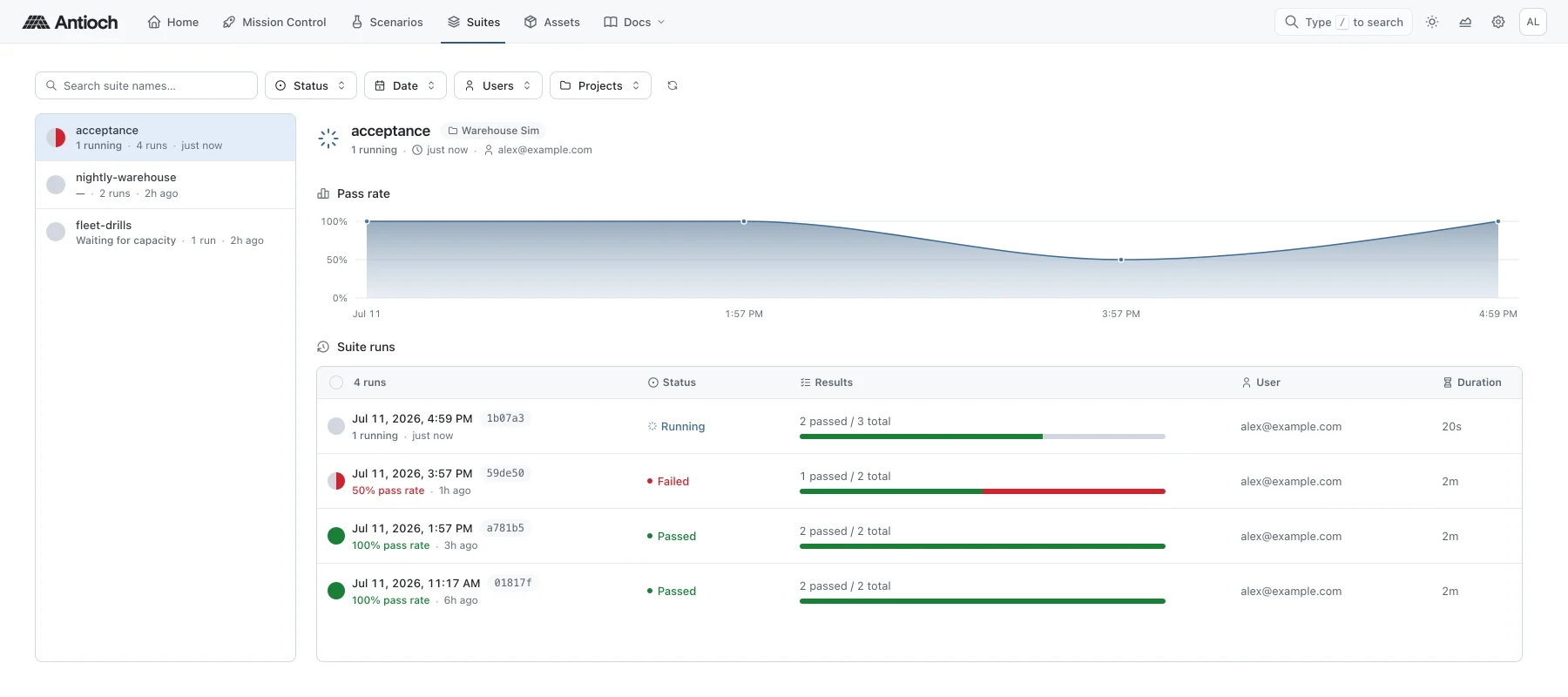
From a terminal, list the suite's runs and follow one by its ID:
```bash
antioch suite list --suite warehouse
antioch suite show SUITE_RUN_ID --follow
```
For individual runs, use `antioch scenario show SCENARIO_RUN_ID` or `antioch scenario logs SCENARIO_RUN_ID`. Add `--verbose` to a run command for process output, or `--json` for machine-readable progress.
To repeat saved work, use `antioch suite rerun SUITE_RUN_ID`. To test local code changes, submit a new `suite run` instead. To stop unfinished work, use `antioch suite cancel SUITE_RUN_ID`; finished results remain available. The same commands work under `antioch scenario` for individual runs. Pressing **Ctrl-C** only closes the terminal's progress display, so use `cancel` when you want the runs to stop.
To run these checks automatically after a code change, follow [Integrating into CI](/docs/scenarios/integrating-into-ci).
- [Review Scenarios and Suites](/docs/scenarios/review-results) — Inspect outcomes, telemetry, logs, and files saved by each run.
## [/docs/scenarios/integrating-into-ci](/docs/scenarios/integrating-into-ci)
Once you've defined a suite, you can run it in continuous integration (CI) to check simulation behavior after a code change. Your CI job submits the code and waits for the result; Antioch runs the simulations on cloud compute, so the CI runner doesn't need a GPU or Isaac Sim.
## Connect Your CI Job
In [Settings](/settings), under **Personal access tokens**, choose **Generate token**. Give it a name and expiry, then copy it before closing the dialog. Save it in your CI secret store and expose it to the job as `ANTIOCH_TOKEN`. The CLI uses this token without a browser sign-in.
## Run the Suite
Check out your project and install `uv` on the CI runner. Run the job from the directory containing `antioch.yaml` and `pyproject.toml`. For example, this GitHub Actions step installs the project's locked dependencies and runs the suite with your saved token:
```yaml
- name: Check simulation behavior
env:
ANTIOCH_TOKEN: ${{ secrets.ANTIOCH_TOKEN }}
run: |
uv sync --locked
uv run antioch suite run warehouse
```
Here, `warehouse` is the [suite defined in your project](/docs/scenarios/run-scenarios-and-suites#define-a-suite). Commit `uv.lock` so the job uses the same SDK and Python dependencies as your local environment.
The command waits until the suite finishes and exits with a nonzero status if a scenario fails or the suite can't complete. Let your CI job use that exit status to decide whether the check passes. You don't need to start a session first: Antioch starts or reuses its managed sessions for the run.
Open [Suites](/suites) to inspect a failed run and its saved evidence. [Review Scenarios and Suites](/docs/scenarios/review-results) shows how to read outcomes, view telemetry, and download output files.
## [/docs/simulation-capabilities/engines/isaac-sim-6-0-1](/docs/simulation-capabilities/engines/isaac-sim-6-0-1)
You can use [Isaac Sim 6.0.1](https://docs.isaacsim.omniverse.nvidia.com/6.0.1/) on Antioch with its native Python APIs for physics, rendering, and sensors. Your code stays in your local project; Antioch runs it on cloud GPUs and lets you watch the simulation in the browser.
Use Isaac Sim when you want to build scenes, control robots, and work directly with physics and sensor APIs. If you are building a robot-learning environment with observations, actions, and rewards, see [Isaac Lab](/docs/simulation-capabilities/engines/isaac-lab-3-0). Here, we'll run the generated Isaac Sim example, configure the engine, and use the same APIs in a scenario.
## Add Isaac Sim to a Project
If you followed the quickstart, you already have this setup and can jump to [Configure the Engine](#configure-the-engine). Otherwise, begin with a [Python project and an active virtual environment](/docs/quickstart/install-the-sdk). Install Antioch with the Isaac Sim option, then create the example files:
```bash
uv add --compile-bytecode "antioch-sim[isaac-sim]>=0.5.0"
antioch init
```
The package includes stubs for Isaac Sim and its supporting APIs, so your editor can offer code completion without a local simulator installation. `antioch init` creates a cube simulation and the configuration needed to run it, including a Dockerfile with an engine image that matches your SDK.
The [generated Dockerfile](/docs/running/understand-antioch-yaml#build-a-custom-simulation-image) is also where you add extra dependencies. Its engine image has no tag, so it follows your SDK when you [upgrade](/docs/quickstart/install-the-sdk#upgrade-the-sdk).
## Start Isaac Sim
For a freshly initialized project, start a session and run the generated cube example for ten minutes:
```bash
antioch session new
antioch service exec --stream -- python src/main.py --seconds 600
```
The `--stream` flag lets you watch the simulation in Mission Control. Leave it out when you do not need a livestream. The [first simulation walkthrough](/docs/quickstart/run-your-first-simulation#run-the-simulation) shows where to find the stream and how to change the code. To focus on how the engine starts, you can replace `src/main.py` with this shorter script. It drops one cube, with the Isaac imports placed after engine startup:
```python
import antioch
def main() -> None:
"""
Drop a cube onto a ground plane.
"""
antioch.start_simulation()
import numpy as np
from isaacsim.core.api.objects import DynamicCuboid
world = antioch.world()
world.scene.add_ground_plane()
world.scene.add(DynamicCuboid(prim_path="/World/cube", name="cube", position=np.array([0.0, 0.0, 2.0]), size=0.5))
world.reset()
for _ in range(300):
world.step(render=True)
if __name__ == "__main__":
main()
```
This shorter script exits after 300 physics steps, so its stream is brief. Keep the generated example or the quickstart's final pause when you want more time to watch.
`antioch.world()` returns Isaac's native `World`, which manages the scene and physics steps. If you need lower-level access, `antioch.stage()` returns the USD stage and `antioch.application()` returns the running `SimulationApp`. When adapting NVIDIA's standalone examples, replace their `SimulationApp` startup with `antioch.start_simulation()`.
## Configure the Engine
To change engine settings, replace the `antioch.start_simulation()` call in your script with one that passes a `SimulationConfig`. This example advances physics at 120 Hz and renders at 60 Hz:
```python
antioch.start_simulation(antioch.SimulationConfig(physics_dt=1.0 / 120.0, render_dt=1.0 / 60.0, renderer_quality="balanced"))
```
These timing settings apply to the `World` returned by `antioch.world()`. Keep `render_dt` an integer multiple of `physics_dt`. `renderer_quality` can be `performance`, `balanced`, or `quality`; it adjusts RTX settings and the maximum live stream resolution, while your code still sets sensor camera resolutions.
`viewport_updates` controls the default viewport separately from the stream. By default it renders while a stream is active and pauses otherwise. Set it to `True` for code that needs viewport updates without a stream, such as Replicator's orchestrator. Your loop still needs to advance Kit; this setting does not step the simulation for you.
Use `extensions` for additional Kit extensions and `extra_args` for native startup arguments. A scenario accepts the same configuration through its `config` decorator argument, because the runner starts its engine for you.
## Use Isaac Sim in Scenarios and Suites
Once your script is running, you can use the same Isaac APIs in a scenario. The [warehouse walkthrough](/docs/quickstart/run-your-first-simulation#turn-the-script-into-a-scenario) shows how to add parameters, checks, and saved measurements to an existing script. The [scenario guide](/docs/scenarios/run-scenarios-and-suites#define-a-scenario) covers additional options for inputs and recording.
Antioch starts Isaac before calling a scenario function, so leave out `antioch.start_simulation()` there. Keep Isaac imports inside the function so the CLI can discover it on your computer without a simulator installed.
## Official Resources
As you build out your scene, use NVIDIA's [Isaac Sim 6.0.1 documentation](https://docs.isaacsim.omniverse.nvidia.com/6.0.1/) for the engine APIs and examples. You can also [connect your coding agent](/docs/quickstart/work-with-agents) to search the matching documentation and source as you work.
## [/docs/simulation-capabilities/engines/isaac-lab-3-0](/docs/simulation-capabilities/engines/isaac-lab-3-0)
[Isaac Lab](https://github.com/isaac-sim/IsaacLab) builds on Isaac Sim with APIs for robot-learning environments, observations, actions, and rewards. On Antioch, you use those APIs directly and run the environment on cloud GPUs.
Let's run a cart-pole example, where a cart moves along a rail with a pole balanced above it. Then we'll use a scenario to check its behavior. Your script starts the simulator with `antioch.start_simulation()` in place of Lab's `AppLauncher`, so existing Lab projects need a small change to their startup code.
Antioch's Isaac Lab 3.0 engine includes NVIDIA's [3.0 Beta 2 release](https://github.com/isaac-sim/IsaacLab/releases/tag/v3.0.0-beta2) with [Isaac Sim 6.0.1](/docs/simulation-capabilities/engines/isaac-sim-6-0-1).
## Add Isaac Lab to a Project
Let's create a separate [Python 3.12 project](/docs/quickstart/install-the-sdk#create-a-python-project) for Lab. The quickstart project uses Isaac Sim; keeping the projects separate lets each use its own engine and dependencies. Install only the Lab extra in this project.
From the new project's directory, install the Lab option:
```bash
uv add --compile-bytecode "antioch-sim[isaac-lab]>=0.5.0"
```
[Activate `.venv`](/docs/quickstart/install-the-sdk#activate-the-environment), then run:
```bash
antioch init
```
The package includes stubs for Lab and Sim, so your editor can offer code completion without installing either engine locally. `antioch init` creates a cart-pole example, scenarios, and the configuration needed to run them. Its Dockerfile selects an engine image that matches your installed SDK.
The [generated Dockerfile](/docs/running/understand-antioch-yaml#build-a-custom-simulation-image) is also where you add extra dependencies. Its engine image has no tag, so it follows your SDK when you [upgrade](/docs/quickstart/install-the-sdk#upgrade-the-sdk).
## Start an Isaac Lab Scene
Let's start a session and run the generated cart-pole example for ten minutes:
```bash
antioch session new
antioch service exec --stream -- python src/main.py --seconds 600
```
In the console, find your project under **My sessions** and select the video icon (**View livestream in Mission Control**) to watch the cart move and the pole swing. Before the stream is ready, the row shows a plug icon for connecting to the session. Press **Ctrl-C** to stop the script.
Open `src/main.py` to see how it works. The script calls `antioch.start_simulation()` before importing Isaac Lab, then builds an `InteractiveScene` and steps it with Lab's `SimulationContext`. Keep this startup order when adapting NVIDIA examples: Antioch replaces their `AppLauncher` step. Use Lab's `SimulationContext` to advance physics and rendering. `antioch.world()` returns an Isaac Sim `World`, which this Lab example does not use.
While you watch, the arrow keys move the camera; [Mission Control](/docs/running/use-mission-control#move-the-camera) lists the keys. If your script reads the keyboard itself, such as Lab's `Se2Keyboard` teleoperation, start with `antioch.start_simulation(antioch.SimulationConfig(keyboard_navigation=False))` so the camera leaves those keys to your code.
As you edit, run the same `service exec` command again. Antioch copies your changes into the session before the script starts, so source edits don't need a new build.
## Use Isaac Lab in a Scenario
We've now run the scene as a script. The generated project also includes `cartpole_balance`, a scenario that checks the cart-pole's state and saves images from the run. Collect it, then run it:
```bash
antioch scenario collect
antioch scenario run cartpole_balance
```
Because the command has no `--session`, Antioch starts or reuses a session for the scenario and waits for the result. Your development session stays running. Release it with `antioch session release` when you no longer need it, or pass its ID with `--session SESSION_ID` to run the scenario there instead. You'll find the run in [Scenarios](/scenarios), where you can review its checks, pole-angle measurements, and images. The [scenario walkthrough](/docs/quickstart/run-your-first-simulation#turn-the-script-into-a-scenario) explains how parameters and saved results fit together.
To adapt that example to your own environment, keep the Isaac Lab imports and scene creation inside the decorated function. Antioch starts the engine before calling it, so the function doesn't need `antioch.start_simulation()`. Keeping those imports inside also lets the CLI discover your scenarios locally.
## Official Resources
For the next steps in building your environment, NVIDIA's [Isaac Lab tutorials](https://github.com/isaac-sim/IsaacLab/blob/v3.0.0-beta2/docs/source/tutorials/index.rst) cover scene construction, environments, and learning workflows. You can also [connect your coding agent](/docs/quickstart/work-with-agents) to search the matching documentation and source as you build.
## [/docs/running/use-mission-control](/docs/running/use-mission-control)
[Mission Control](/mission-control) lets you watch simulations and inspect telemetry from scripts, notebooks, and scenarios. Select a session to view its live data. You can switch between sessions without stopping the programs running in them.
## Start a Stream
Add `--stream` when you run a script, scenario, or suite. For the warehouse script from [A Simple Example](/docs/quickstart/run-your-first-simulation#run-the-simulation), [start a session](/docs/running/work-interactively#start-a-development-session) if you don't already have one, then run:
```bash
antioch service exec --stream -- python src/main.py
```
Once Isaac has loaded, your code must keep rendering frames for the viewer to show them. **Ready for commands** means the session can accept work; it doesn't mean a simulation is producing a stream yet.
You can also start scenarios from Mission Control's **Workspace > Run** tab. These runs always stream, whatever the scenario's `SimulationConfig(stream=...)` says. You don't need a browser workspace to watch a session started from your computer.
## Select a Session
Open [Mission Control](/mission-control), open **Sessions**, and choose the session you want to watch. Each row shows the project, session ID, and current activity. The **User** badge marks sessions you started; **Antioch** marks sessions started for your scenario or suite runs.
Click the row or its **View livestream** icon. While the simulation is still starting, the icon says **Connect to session**. The main view shows the stream once it is ready. You can also open the selected session from **Live now** on [Home](/).

To watch another simulation, choose its session in **Sessions**. If you open the same stream in another browser tab or device, playback moves to that viewer.
## Inspect the Simulation
The bar above the picture shows the selected session, measured frame rate, and connection quality. Use fullscreen for a closer look. Open **Telemetry** to inspect data from scripts, notebooks, or scenarios. Telemetry works independently of video, including when no simulator is running. You can move and resize the panes to keep both in view.
## Stream Telemetry from a Script
Start a session, then run your script with `antioch service exec -- python src/main.py`. Use `antioch.Telemetry` to connect a native Rerun recording to Mission Control:
```python
import antioch
import rerun as rr
import rerun.blueprint as rrb
with antioch.Telemetry("experiment", rrd_path="experiment.rrd") as telemetry:
rr.send_blueprint(rrb.Blueprint(rrb.TimeSeriesView(origin="/metrics")))
for step in range(10):
rr.set_time("step", sequence=step)
rr.log("metrics/error", rr.Scalars(1.0 / (step + 1)))
```
Select that session and open **Telemetry**. `--stream` is needed only for native video. Rerun SDK calls and `antioch.Logger` can share the recording; `telemetry.recording` exposes the native stream for explicit routing. Set a blueprint before logging to arrange the live panes. The saved RRD contains the authored blueprint and data.
In notebooks, use `telemetry = antioch.Telemetry("experiment").start()` and `telemetry.stop()` across cells. Repeated starts reuse the active recording, and repeated stops are harmless. Without an explicit path, `telemetry.rrd_path` identifies its private temporary file. Standalone telemetry creates no scenario run or automatic cloud archive; copy the RRD out of the session before releasing it.
Scenarios record telemetry the same way, and their recordings remain available in the scenario run's **Telemetry** tab after completion. The live feed belongs to whichever program is recording: a scenario that starts while your script still records saves its recording without streaming it, so stop the script's telemetry first to watch the scenario live.
Picture quality comes from your code. To change it, update the [simulation configuration](/docs/simulation-capabilities/engines/isaac-sim-6-0-1#configure-the-engine) and restart the simulation. If the viewer is waiting for frames, check the script's terminal output or the scenario's **Output** tab to see whether Isaac is still loading or the simulation has finished.
## Move the Camera
Hold the right mouse button and drag to look around, and press W, A, S, or D while holding it to fly through the scene. On a trackpad, or whenever holding a mouse button is awkward, use the keyboard instead:
| Keys | Camera |
| --------------------------------- | --------------------------------------------- |
| Arrow keys | Move forward, back, and sideways |
| Shift + arrow keys | Look around without moving |
| Ctrl + Up or Down, Shift + E or Q | Move up or down |
| `-` or `=` | Slow down or speed up by 1.5x for each press |
| Hold X or Z | Move twice as fast or half as fast while held |
Keyboard movement is on for every streamed simulation. If your code reads the same keys, for example to drive a robot from the keyboard, turn it off with `SimulationConfig(keyboard_navigation=False)`.
## Stop Watching
Choose **Stop watching** on the session row to close its live view. The simulation keeps running. When you're finished with a session you started, save any files you need and choose **Release session** to stop its services and free the compute.
Watching a stream does not keep an otherwise idle session running. Saved scenario results and recordings remain available after the session ends.
- [Review Scenarios and Suites](/docs/scenarios/review-results) — Inspect checks, measurements, recordings, and files saved by a run.
## [/docs/scenarios/review-results](/docs/scenarios/review-results)
[Scenarios](/scenarios) and [Suites](/suites) keep the results of your simulation runs. Start with the outcome, then open the checks, measurements, output, and recordings to understand what happened. These records remain available after the session stops.
Let's inspect a scenario run first, then compare repeated runs of a suite to see what changed. If you followed the quickstart, look for the `warehouse_delivery` scenario and the `warehouse` suite.
## Review a Scenario in the Console
Open **Scenarios** and choose a run from the list. Use search and filters to narrow the list to a project, scenario, or outcome. In the selected run:
- **Details** shows its inputs, checks, and named results. A failed check tells you which success criterion was missed; an error means the run could not finish normally.
- **Output** shows stdout and stderr from your Python process.
- **Telemetry** opens the time-series, 3D, and image data your code recorded with [Rerun](https://rerun.io).
- **Download**, in the header, contains the files saved by the run.
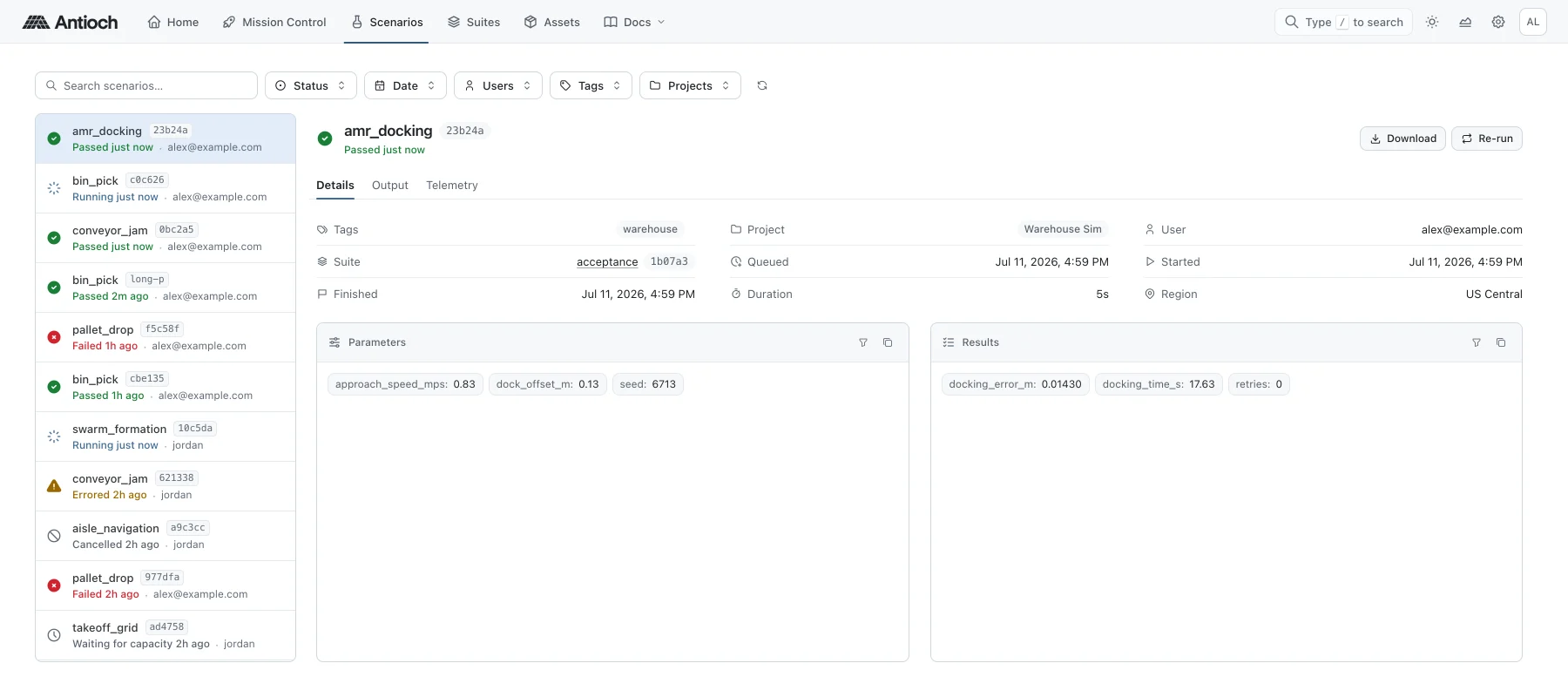
For a run that is still active, Output and Telemetry can show live data when it is available. To watch the simulation itself, open [Mission Control](/docs/running/use-mission-control#select-a-session). To share a run, choose **Copy link** in its header; the link opens the same run for a teammate in your organization. To add more recorded measurements, see [Record Measurements over Time](/docs/scenarios/run-scenarios-and-suites#record-measurements-over-time).
### Open a Recording in Rerun
To inspect a recording outside the console, download it and open it with [Rerun](https://rerun.io):
```bash
antioch scenario download SCENARIO_RUN_ID --artifact telemetry --output telemetry.rrd
rerun telemetry.rrd
```
## Review a Suite
Open **Suites** and choose a suite. Its history shows each run's status, results, duration, and who started it. Completed runs show a pass rate; active runs show how many scenarios have passed so far. Choose a suite run to see the scenario runs it contains, then open one to inspect its checks, measurements, and recorded data.

To see what changed, select two to eight runs of the same suite and choose **Compare**. The comparison shows pass rates, durations, and numeric results alongside a scenario matrix. Turn on **Divergent only** to focus on scenarios with different outcomes.
## Download Output Files
Open the run's **Download** menu to find reports, images, and other files attached by your code. Each file shows the description supplied by the scenario. The [scenario guide](/docs/scenarios/run-scenarios-and-suites#save-output-files) shows how to attach a `delivery-summary.json` report so it stays available after the session ends.
You can also download that report or all the run's files from the terminal:
```bash
antioch scenario download SCENARIO_RUN_ID --artifact delivery-summary.json --output outputs/delivery-summary.json
antioch scenario download SCENARIO_RUN_ID --output outputs/
```
If another project or run will use the file as an input, publish it as a versioned asset.
## Search from the CLI
You can find the same runs without opening the console. From your project directory, list scenarios or suites; add `--mine` to show work you started and `--since` to choose a time range:
```bash
antioch scenario list --mine --since 7d
antioch suite list --mine --since 7d
```
You can also find runs by outcome, parameters, or saved measurements. For the [warehouse example](/docs/quickstart/run-your-first-simulation), these commands find failed scenarios in the suite and fast runs that stopped short of the target position. Parameter and result filters use `NAME:OPERATOR:VALUE`:
```bash
antioch scenario list --suite warehouse --outcome failed
antioch scenario list --param 'speed_mps:=:0.6' --result 'final_x_m:<:-1.15'
```
Lists show ten matches by default; use `--limit 25` to see more. Add `--json` when you need structured data for a script or agent.
- [Manage Assets](/docs/organization/manage-assets) — Publish simulation files and reuse them across projects.
## [/docs/organization/manage-assets](/docs/organization/manage-assets)
[Assets](/assets) is your team's catalog of robot models, environments, datasets, and other reusable files. Each asset has named versions, so your simulations can keep using the same inputs while your team publishes updates. You can browse and upload files in the console, then use them from Python or the Antioch CLI.
## Browse the Catalog
Use the search box to find an asset by name, or open a folder to browse its contents. **Organization** shows your team's files; **Shared** shows assets provided by Antioch. The breadcrumbs take you back through the folders.
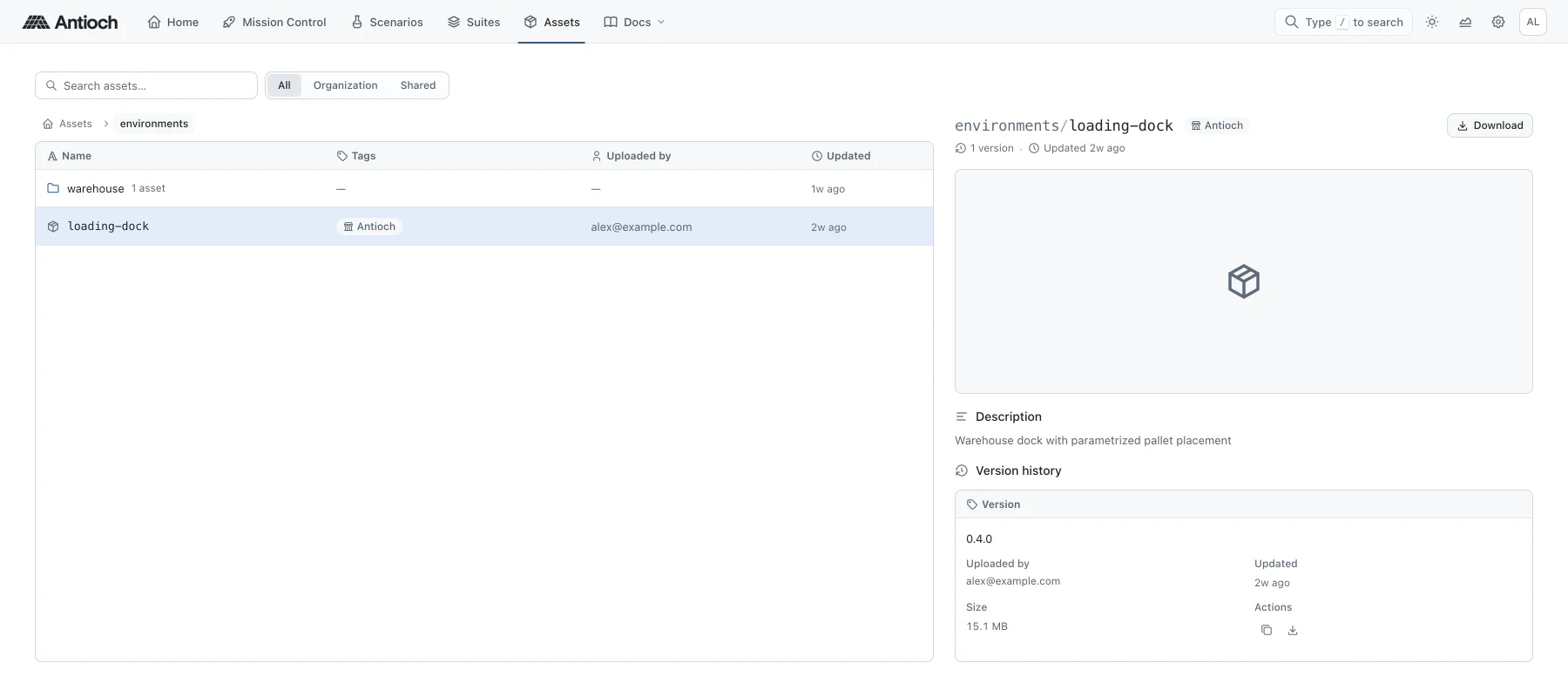
Select an asset to see its preview, description, and version history. The newest version is shown first; select an earlier version in the history to see its own preview and description. Choose **Download** to get the file. If a preview is unavailable, you can still download the stored asset.
From the terminal, you can search the same catalog and inspect a result:
```bash
antioch asset list --search warehouse
antioch asset show ASSET
```
Replace `ASSET` with a name from the list. If you're starting without a model of your own, [Isaac's stock robots and environments](#use-isaacs-own-robots-and-environments) give you a place to begin.
## Upload a Version
Choose **Upload asset**, or drop one file onto Assets. Enter an asset path and version label; for example, `robots/warehouse-robot` and `v1`. Open **Details** to add a description or a preview image, chosen or dropped onto **Choose image**, then choose **Upload**. Each version keeps the description it was uploaded with; leave it empty to keep the asset's current description.
Uploading to an existing asset path adds a version. Give changed contents a new version label: published versions cannot be overwritten with different files. Uploads go to your organization, including when you are browsing Shared assets.
Package a USD model and its textures or referenced layers into a self-contained `.usdz` file before uploading. A file that refers to dependencies on your computer will not have those dependencies in a cloud session.
The form accepts one file at a time, up to 16 GiB, with an optional preview image up to 8 MiB. **Cancel** or Escape discards the form. **Close** hides a running upload so you can browse while it continues; keep the page open until it finishes.
The CLI publishes to the same catalog. For a local file named `robot.usdz`, run:
```bash
antioch asset push robot.usdz --name robots/warehouse-robot --version v1
```
## Load a Published USD Asset into Isaac
After uploading `robot.usdz` as `robots/warehouse-robot` version `v1`, use `load_asset` to add it to the simulation. Put this code in a script that runs on an Isaac session, with engine startup before the asset load:
```python
import antioch
antioch.start_simulation()
robot = antioch.load_asset("robots/warehouse-robot", prim_path="/World/Robot", version="v1")
```
`load_asset` downloads and verifies the file, then adds it to the USD stage, the scene's hierarchy of objects. Each object is a **prim** with its own path. Choose an unused absolute `prim_path`; here, `/World/Robot`. The asset must have a valid default prim, which identifies the model to add. The returned `robot` is a native `Usd.Prim`, so you can position it or inspect its properties with USD APIs.
Inside a scenario, leave out `antioch.start_simulation()` because Antioch has already started the engine. See [A Simple Example](/docs/quickstart/run-your-first-simulation#turn-the-script-into-a-scenario) for how the same simulation code can run as a script or a scenario.
For a dataset or policy checkpoint, use `fetch_asset` instead. It downloads the file to the computer or session running your code, verifies it, and returns a path you can pass to your own loader:
```python
asset_path = antioch.fetch_asset("navigation-policy", version="v1")
```
Replace `navigation-policy` with the name of a file in your catalog. To download a copy from the terminal, use:
```bash
antioch asset pull robots/warehouse-robot --version v1 --output downloaded-robot.usdz
```
### Choose an Asset Version
Leave out `version` in Python, or `--version` when downloading with the CLI, to use the latest published version while exploring. In scenarios and suites, choose a version explicitly so a later upload won't change the input to your run.
## Use Isaac's Own Robots and Environments
NVIDIA's stock assets load directly from Isaac's asset collection without an upload to Antioch. The [quickstart](/docs/quickstart/run-your-first-simulation#build-the-warehouse-simulation) uses its Nova Carter robot and Small Warehouse scene. Here's how to add that warehouse to a running simulation:
```python
def add_warehouse() -> None:
import isaacsim.core.experimental.utils.stage as stage_utils
from isaacsim.storage.native import get_assets_root_path
root = get_assets_root_path()
if root is None:
raise RuntimeError("Isaac asset root is unavailable")
stage_utils.add_reference_to_stage(usd_path=root + "/Isaac/Environments/Simple_Warehouse/warehouse.usd", path="/World/Warehouse")
```
Call `add_warehouse()` after `antioch.start_simulation()` in a script, or from inside a scenario. Keep stock scenes at their original asset paths: they reference other meshes and materials that a single copied USD file would leave behind. NVIDIA's [environment catalog](https://docs.isaacsim.omniverse.nvidia.com/6.0.1/assets/usd_assets_environments.html) lists more scenes to try.
## Publish Files from Python
When your code produces a file that another project will reuse, publish it with `save_asset`. For example, after writing a policy checkpoint:
```python
antioch.save_asset("navigation-policy", version="v1", source="checkpoint.pt")
```
You can also call `fetch_asset` or `save_asset` with a `source` path from a local Python script without starting a simulation. Local code uses your Antioch sign-in, and code in a session uses that session's credentials.
To save an assembled Isaac scene, call `save_asset` without a `source` path:
```python
antioch.save_asset("warehouse-scene", version="v1")
```
This packages the active USD stage as a `.usdz` file and publishes it to your team's catalog. The scene needs a default prim, and all referenced files must be available for packaging.
## Check or Recover a Published File
If a stored file cannot be downloaded, check it with:
```bash
antioch asset verify robots/warehouse-robot --version v1
```
This compares the file with its recorded checksum. If it is missing and you still have the original, remove the unavailable version and publish it again:
```bash
antioch asset repair robots/warehouse-robot --version v1
antioch asset push robot.usdz --name robots/warehouse-robot --version v1
```
`repair` removes only versions whose stored files are missing. It cannot reconstruct a lost file.
## Delete an Asset
To remove an asset your team no longer needs, select it in the catalog and choose **Delete**, or run:
```bash
antioch asset delete robots/old-warehouse-robot
```
Deleting removes the asset and every one of its versions from your team's catalog. Code that still loads it will no longer find it, and publishing the same name again starts a new asset. Assets provided by Antioch can't be deleted.
To remove just one version, choose the delete icon on its row in the version history, or name it:
```bash
antioch asset delete robots/old-warehouse-robot --version v1
```
The asset and its other versions stay. You can publish that version label again later, with new content if you like. An asset's only version goes with the asset itself, so delete the asset instead.
## [/docs/organization/track-compute-usage](/docs/organization/track-compute-usage)
The [Usage page](/usage) shows how much time your organization's sessions have used. Use it to understand recent activity, find the projects using the most session time, and check individual sessions.
## Review Usage
Choose a time range, then filter by project or teammate if needed. The summary, chart, and **Session history** update together. Scroll down through the history to load older sessions.
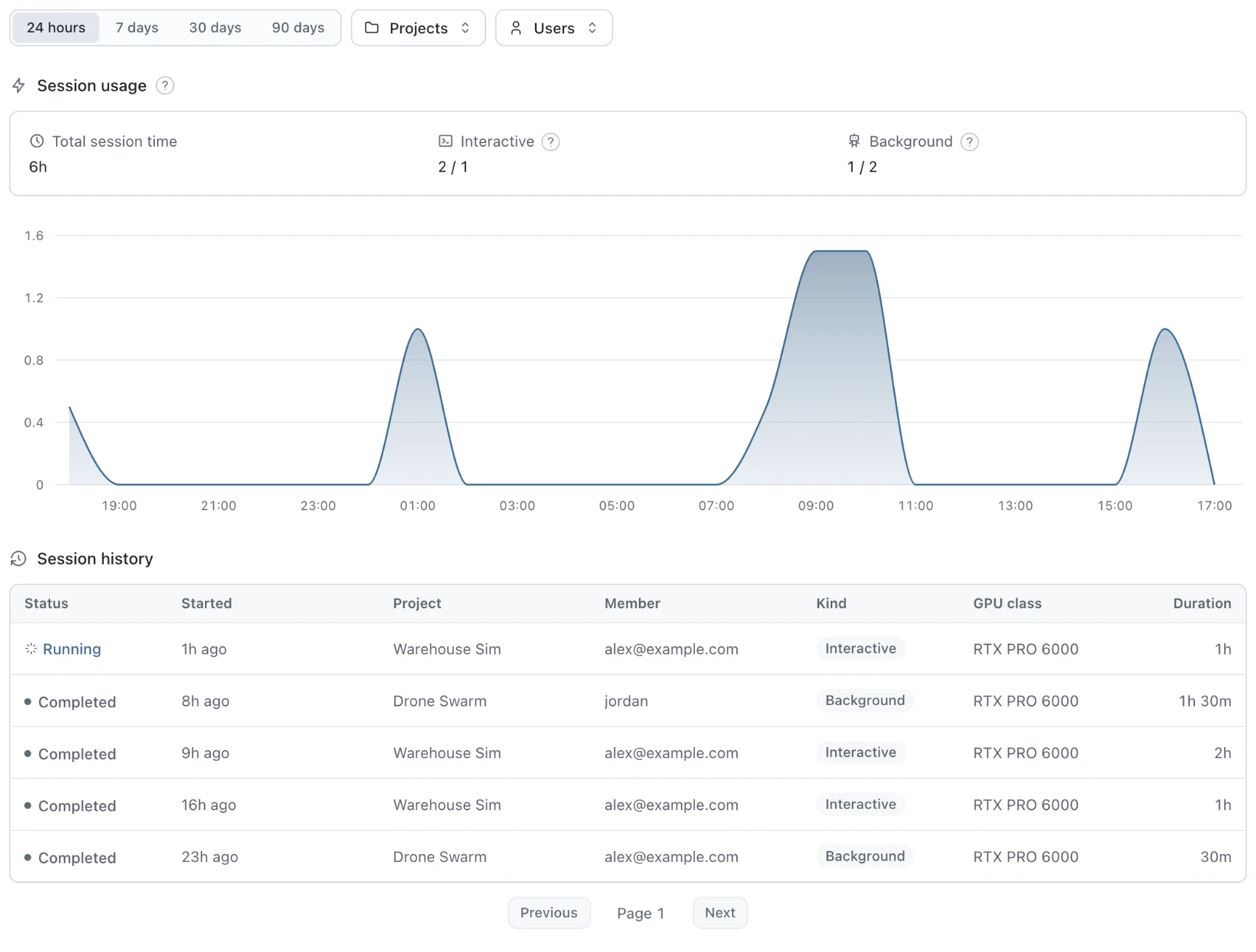
Each history row represents one session, even when that session runs several services. It shows the project, member, GPU class, and duration. Live sessions appear first.
## Understand Session Time
One session running for an hour contributes one session hour. Two sessions running for an hour each contribute two session hours, even when they run at the same time. The number of services or GPUs within a session does not multiply its session time.
Both sessions you start and sessions Antioch starts for your runs count. A session keeps holding compute between commands until it is released, so idle time counts too. Builds and Mission Control workspaces are separate and do not add session time.
Only time within the selected range counts. The page shows elapsed time, not a price. Recent activity can take a short time to appear, and sessions run by Antioch support staff are excluded.
## Release a Session
When you have finished with a session you started, choose the **Release session** icon on its row on [Home](/) or in [Mission Control](/mission-control). You can also release it from your project directory:
```bash
antioch session release
```
If several sessions are running, pass the one you want to release: `antioch session release SESSION_ID`. The CLI asks you to stop active commands first, or use `--force`; the console asks you to confirm. Save remote files you need before releasing, because the session's temporary files are deleted. Session time stops counting as soon as Antioch accepts the release, even if the services take a little longer to shut down.
Sessions you start release after their configured idle window, 15 minutes by default; sessions Antioch starts for runs release after five. An idle notebook kernel alone does not keep its session active, but running a cell or keeping a browser or agent connected to JupyterLab does. Idle time counts toward usage until release.
If Antioch cannot confirm that a session is idle, automatic release waits to avoid interrupting your work. The console may show **Activity unavailable**, and session time keeps counting until release. You can still release the session yourself.
## [/docs/organization/manage-your-team](/docs/organization/manage-your-team)
An organization is your team's shared space in Antioch. Members can review each other's scenario results, suites, assets, and usage, while each person signs in with their own account and runs code in their own sessions. Admins invite teammates and assign roles from [Team](/team).
## Open the Team Page
Choose **Team** from your avatar menu. **Members** lists your teammates, **Support** lists Antioch support staff with access, and **Invites** shows invitations that have not been accepted.
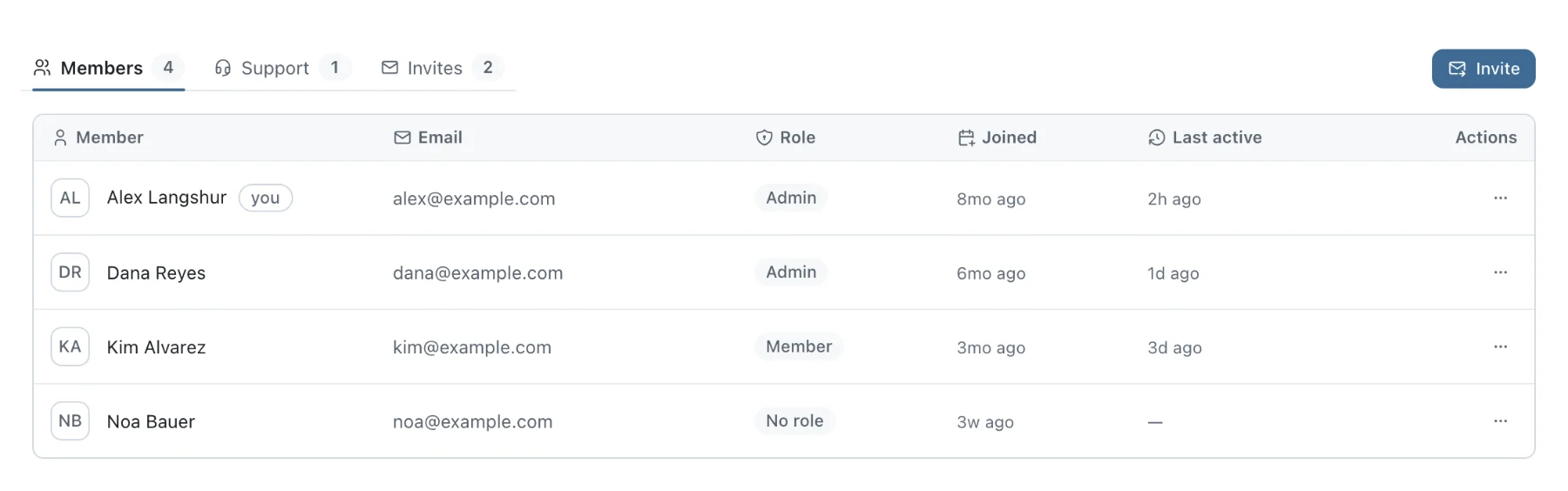
If you belong to more than one organization, `antioch auth whoami` shows which one the CLI is using. Run `antioch auth switch` when you need to work in another.
## Invite a Teammate
If you are an admin, choose **Invite**, enter their email address, and select a role. They receive an email invitation. You can revoke a pending invitation from **Invites**.
To change an existing member's role or remove their access, open the menu on their row. Removing someone ends their access; their saved results and other history stay with your organization.
## Understand Roles
Each member has a role that determines what they can manage. If you're assigning a role, use the table below to choose the access they need.
| Role | Access |
| ------------- | ----------------------------------------------------------------- |
| Member | Use Antioch and view the team roster. |
| Admin | Also invite and remove people, and assign Member and Admin roles. |
| Support staff | Manage all roles, including Antioch support access. |
Support staff are Antioch personnel. Contact Antioch if you need to change support access or if team management isn't available for your organization.
## [/docs/release-notes/antioch-0-5](/docs/release-notes/antioch-0-5)
Introducing Antioch 0.5: a simpler, better way to develop and run simulations. We've reworked the session model from the ground up, along with other core improvements, to make Antioch much easier to get started with and much faster to scale up.
A few key highlights:
1. **No more separate interactive and background sessions.** Instead, there's a single pool of sessions you can spin up elastically and use across Python scripts, Jupyter notebooks, and scenario runs.
2. **Simpler, more explicit CLI controls**, so it's always clear which session and service you're talking to and what's running on it.
3. **Faster, fully automated source sync**, so you can focus on writing code and running simulations instead of thinking about how and when your local source gets to your services in the cloud.
4. **New and improved scenario and suite selection**, giving you more flexibility in how you run scenarios and define suites, including a simple Python API for creating custom dispatch routines.
Beyond the platform and ergonomics changes, the console also got a ton of improvements, including live output and telemetry for running scenarios, better asset management, custom names for suite runs, and much more flexible suite comparisons.
**Important:** Antioch 0.5 requires SDK 0.5.0 or later. See [Upgrade to Antioch 0.5](/docs/release-notes/antioch-0-5#upgrade-to-antioch-05) for the steps and what to change in your scripts.
## One Pool of Sessions
All your sessions now show up in one session list in the CLI and the console, including the ones Antioch starts for scenario runs. Each is labeled **Managed by you** or **Managed by Antioch**, and you can open a shell or run a command on any of them. For example, to poke around inside a scenario while it runs:
```bash
antioch service shell --run RUN_ID
```
Antioch never shuts down one of your sessions to make room for another. Sessions you start close after 15 minutes of inactivity. To keep one around longer, start it with `antioch session new --idle-timeout 2h`, or `--idle-timeout never`.
New sessions start in the closest region with a free machine. To pin a service to one region, set `region: us-central` or `region: uk` under its `resources` in `antioch.yaml`.
## Automatic Source Sync
List the folders each service should sync in `antioch.yaml`. They can now live outside your project, too:
```yaml
services:
sim:
sync:
- source: src
target: /workspace/project/src
- source: ../shared_robot_code
target: /workspace/project/robot
```
From then on, `antioch service exec`, `antioch service shell`, and `antioch jupyter lab` push your latest changes before they start and keep syncing while they run. There's no separate sync or watch command anymore.
Each scenario run now also saves a snapshot of your code when you submit it, rather than requiring the source to be copied in by a service's Dockerfile. Edits won't affect a run that's already in progress.
## Scenario and Suite Selection
The CLI, suites in `antioch.yaml`, and the Python client now pick scenarios with the same options: names (including wildcards like `warehouse*`), paths, tags, cases, and parameter values. Use `collect` to preview what a selection will run without using any compute, then `run` it:
```bash
antioch scenario collect warehouse_delivery --all-cases --set speed_mps=0.25,0.6
antioch scenario run warehouse_delivery --all-cases --set speed_mps=0.25,0.6
```
By default, Antioch runs two scenarios at a time. Use `--parallel N` to run more, or `--detach` to get your terminal back as soon as the runs are submitted.
## Console
- **Live runs.** A running scenario's Output and Telemetry tabs now update in real time, and anyone on your team can watch. Previously, they stayed empty until the run finished.
- **Suite run names and comparisons.** Name a suite run with `antioch suite run smoke --run-name "Faster grasp controller"` (or `run_name=` in Python), and the name shows up in history and comparisons. The comparison page can now chart any numeric value from your scenario results.
- **Asset management.** Drag files onto the Assets page to upload a new asset or version, and delete an asset or a single version from its details pane.
- **Search correctness and performance.** Filter suggestions now cover your team's full run history, not just recent runs. It's also quite a bit faster!
## Performance and Other Improvements
- Better support for European sessions!
- Rebuilding an image after a small code change takes seconds instead of minutes.
- Projects with thousands of files upload in seconds.
- The CLI is much snappier, and commands show progress right away.
- Build logs are better, and failed builds tell you in one line what to fix.
- The Claude Code and Codex plugin now includes a ROS 2 skill and reference docs.
- Plus many fixes to shells, Jupyter kernels, idle timeouts, and livestreaming.
## Upgrade to Antioch 0.5
Antioch no longer accepts SDKs older than 0.5.0. In each project, start by upgrading the Antioch SDK to the latest supported version:
```bash
uv add --upgrade-package antioch-sim "antioch-sim[isaac-sim]>=0.5.0"
```
Then:
1. Update the `antioch-engine` image tag in your Dockerfile to the same version.
2. Release any sessions you started before upgrading, and start new ones with `antioch session new`. Existing sessions keep the old image.
3. Upgrade the agent plugin for Claude Code and Codex with `antioch setup`.
Take a look at [Upgrade the SDK](/docs/quickstart/install-the-sdk#upgrade-the-sdk) for more information.
### What Behaves Differently
Existing projects, scenario code, and run history carry over unchanged, but a few commands now behave differently:
- **`antioch scenario run NAME` runs the scenario once, with its default parameters.** Previously it ran every case. Add `--all-cases` to run them all.
- **`antioch session new` starts an additional session.** Previously it replaced your current one. Once you have more than one session, add `--session ID` to say which one a command should use. `antioch session list` shows your session IDs.
- **Scenario and suite runs no longer use your sessions.** Antioch starts separate sessions for them, so your own sessions stay exactly as you left them. To run on one of yours instead, add `--session ID`.
- **Livestreaming is off by default.** Add `--stream` to a command when you want to watch it in Mission Control.
- **Antioch no longer installs Python packages for you.** `project update` and `setup --python` are gone. Upgrade Antioch with `uv` or `pip`, like any other dependency.
### Removed Commands and Options
Removed commands now exit with a one-line message pointing to their replacement, so old scripts fail right away instead of doing something unexpected.
| Removed | Use instead |
| ---------------------------------- | ----------------------------------------------------------------------- |
| `session use` | `--session ID` on each command |
| `session start`, `stop`, `restart` | `session new`, `session release`, `service restart` |
| `service sync`, `service watch` | Not needed; sync is automatic |
| `run FILE` | `antioch service exec -- python FILE` |
| `--background` | Not needed; scenario runs already get their own sessions |
| `project …` | The console's project pages, `antioch init` and `antioch auth registry` |
| `plugin` | `antioch setup` |
| `scenario suggest` | Filter `antioch scenario list` |
A few older options still work for now, but update them the next time you touch your scripts:
- `--no-follow` is now an alias for `--detach`.
- Singular flags like `--tag` and `--case` are now aliases for `--tags` and `--cases`.
- `watch` rules in `antioch.yaml` are ignored with a warning. Replace them with `sync` folders.
- `SimulationConfig`'s `render_quality`, `viewport` and `stream_resolution` are ignored with a warning. Use `renderer_quality` instead.
- The `ANTIOCH_SESSION` environment variable no longer does anything. Use `--session` instead.
## [/docs/organization/account-settings](/docs/organization/account-settings)
Open your avatar menu and choose [**Settings**](/settings) to check your account, create tokens for automation, or change the console's appearance. Team membership and roles live on the separate [Team page](/docs/organization/manage-your-team).
## Create a Personal Access Token
Use a personal access token when a script or CI job needs to run the Antioch CLI without opening a browser. Under **Personal access tokens**, choose **Generate token**, give it a recognizable name such as `github-actions`, and choose an expiry.
Copy the token before closing the dialog. Antioch shows the full value only once. Store it in your CI system's secrets and expose it to the job as `ANTIOCH_TOKEN`; the CLI will use it automatically.
Tokens act as you within your organization. They support simulation and API access, but cannot manage team members, tokens, or Mission Control workspaces.
The list shows when each token expires and when it was last used. Choose **Revoke** when a token is no longer needed. Anything using it stops authenticating immediately, so update an active job's secret before revoking its old token.
## Choose Your Appearance
Under **Appearance**, choose **Light**, **Dark**, or **System** to follow your device's theme. Display preferences apply to this browser.